When creating a data source in Looker Studio using the Catchr connector, you may sometimes notice that your platform accounts do not appear in the account list. This issue is usually related to access synchronization between Catchr, Google, and your browser. Follow the steps below to resolve the problem.
Before anything else, make sure the missing accounts appear inside Catchr Sources on https://app.catchr.io/data-connector/sources.
A Source in Catchr represents an access token. For example, for Meta Ads, the Source is tied to the Facebook account you selected when creating it. Only the Meta Ads accounts visible to that Facebook user will be available in Looker Studio.
If the accounts are not visible in Catchr:
Create a new Source using a Facebook/Google/etc. account that has access to the missing ad accounts, or
Refresh an existing Source to have Catchr update the list of accounts.
If the accounts are visible, move on to step 2.
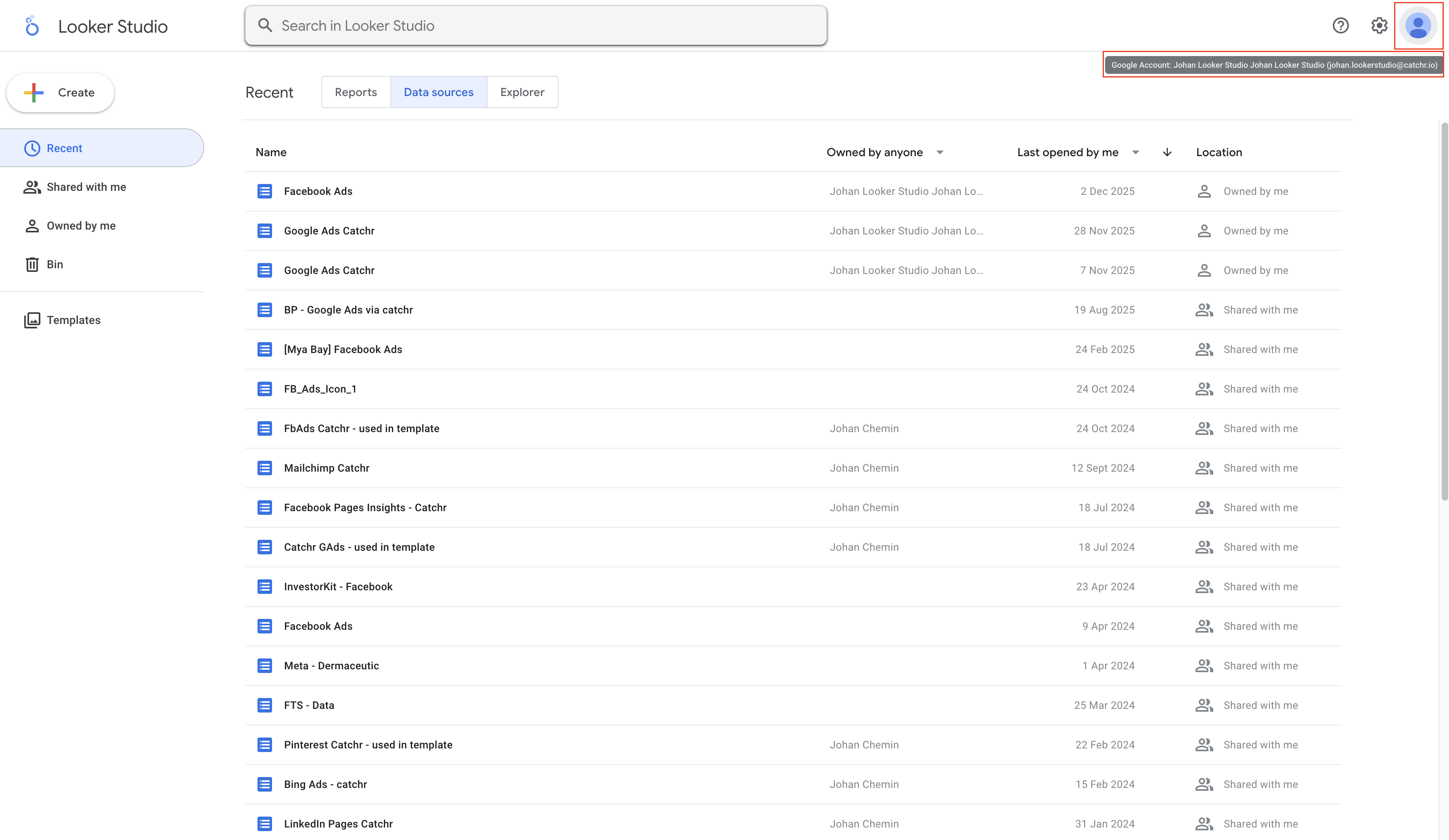
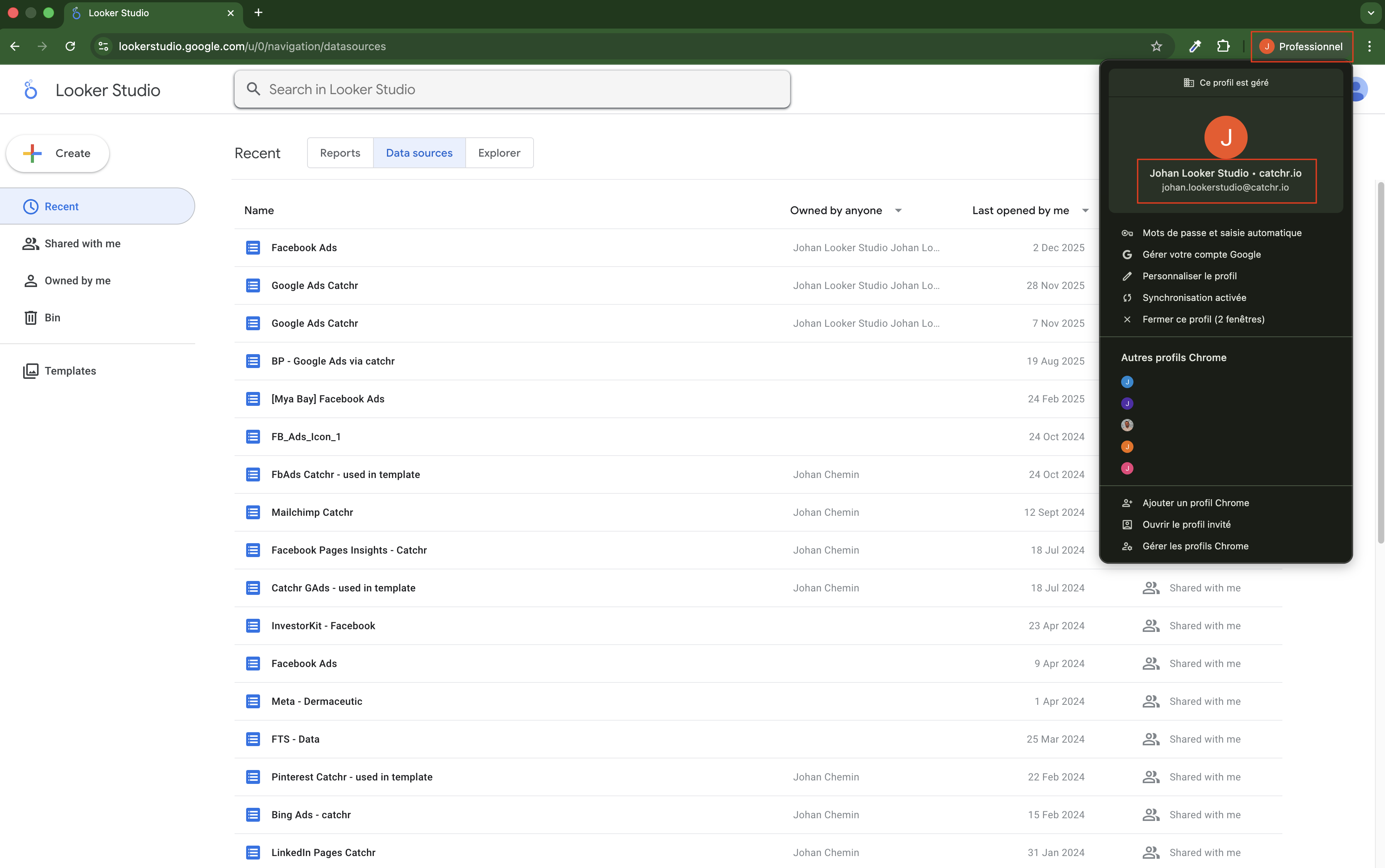
To ensure Looker Studio can fetch the same access permissions as Catchr, you must use the same Google account on:
Looker Studio
Google Chrome (if using Chrome)
Catchr (app.catchr.io, you can see the account used at the top right)
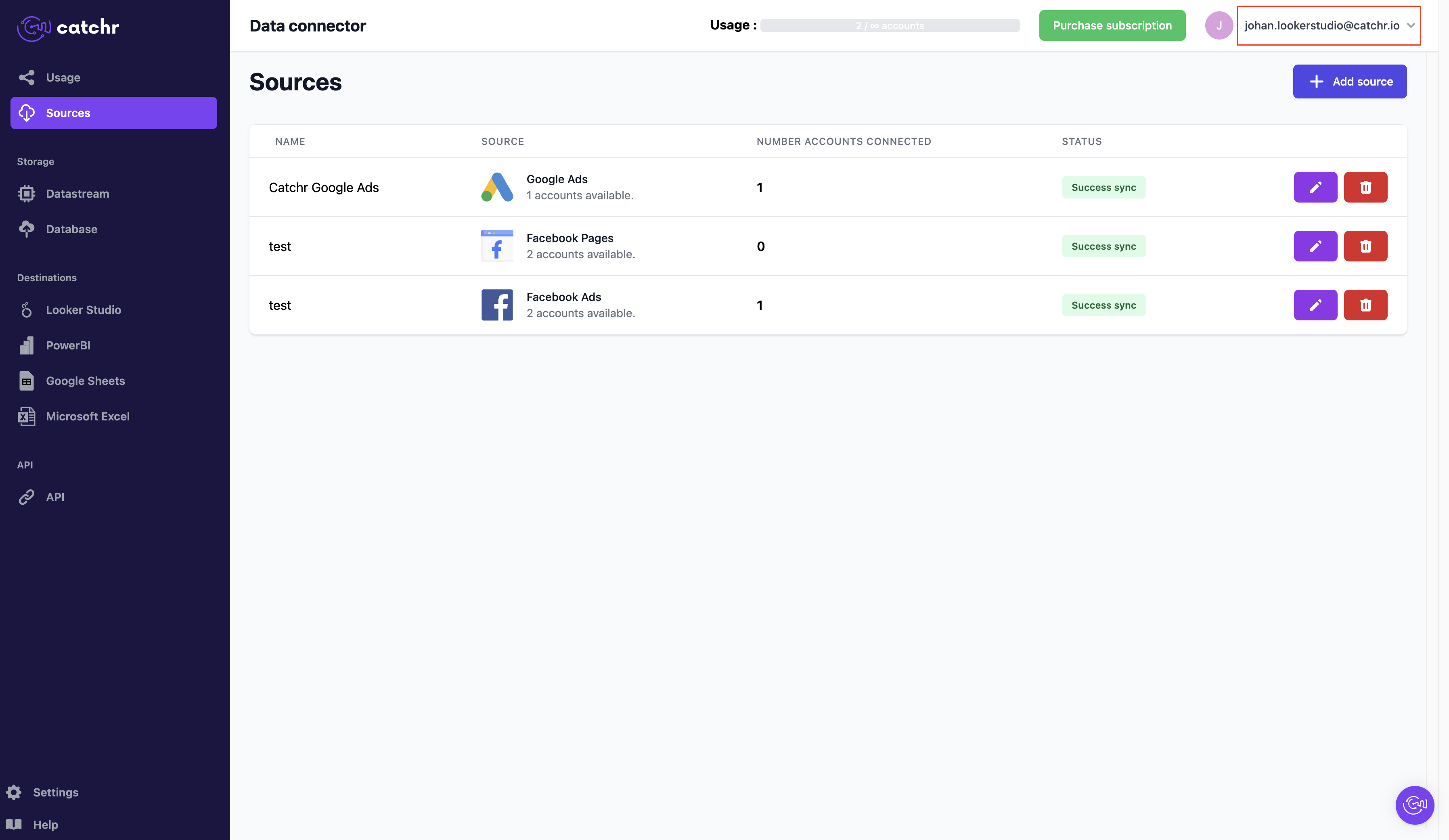
We also recommend being logged into app.catchr.io in the same browser instance where you are using Looker Studio.
If everything matches, but the accounts still do not appear, continue to step 3.
Browser cache conflicts can cause outdated access tokens to persist.
Here are official guides for clearing cache on major browsers:
After clearing the cache, try creating your Looker Studio data source again.
If accounts still do not appear, proceed to step 4.
From Looker Studio:
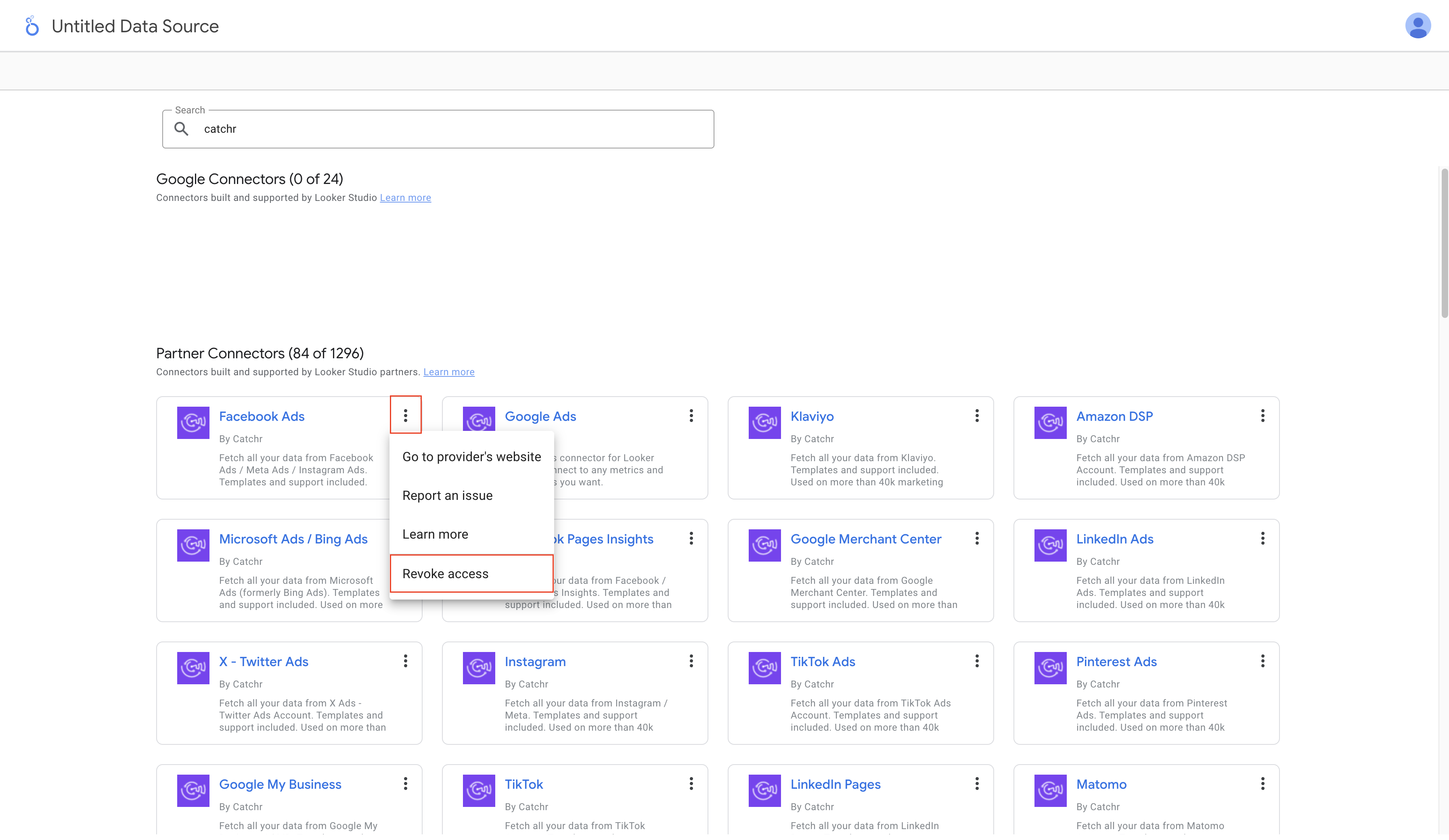
Open the Connectors listing.
Click the three dots next to the Catchr connector.
Select Revoke Access (confirm if a pop-up appears).
Important notes:
This will temporarily break the reports using this connector, but they will start working again as soon as the access is restored.
You only need to do this once per connector, not for each report.
Once access is revoked, try creating a new data source again. Looker Studio will request access and re-establish the connection.
If that still doesn’t fix the issue, move to step 5.
This step resets all permissions between Google and Catchr.
Open your Google account permissions page:
https://myaccount.google.com/connections?continue=https%3A%2F%2Fmyaccount.google.com%2Fsecurity
Remove both Catchr-related authorizations.
Go back to app.catchr.io and log in again using Sign in with Google to restore the correct permissions.
Return to Looker Studio and try creating a new data source.
Your accounts should now be visible.
If the issue persists, please contact us directly via the in-app chat. We’ll be happy to help.