This tutorial explains how to use the Prompts tab to manage the full prompt lifecycle in GEO.
You will learn how to:
- Create prompts manually
- Import prompts with CSV
- Edit existing prompts
- Manage prompt status
- Tag, move, or delete prompts
- Deactivate and reactivate prompts
A prompt is a user-like question GEO sends to selected AI models to evaluate your brand's visibility, sentiment, and citations.
- You already created a monitor.
- You opened the monitor detail page.
- You selected the Prompts tab.
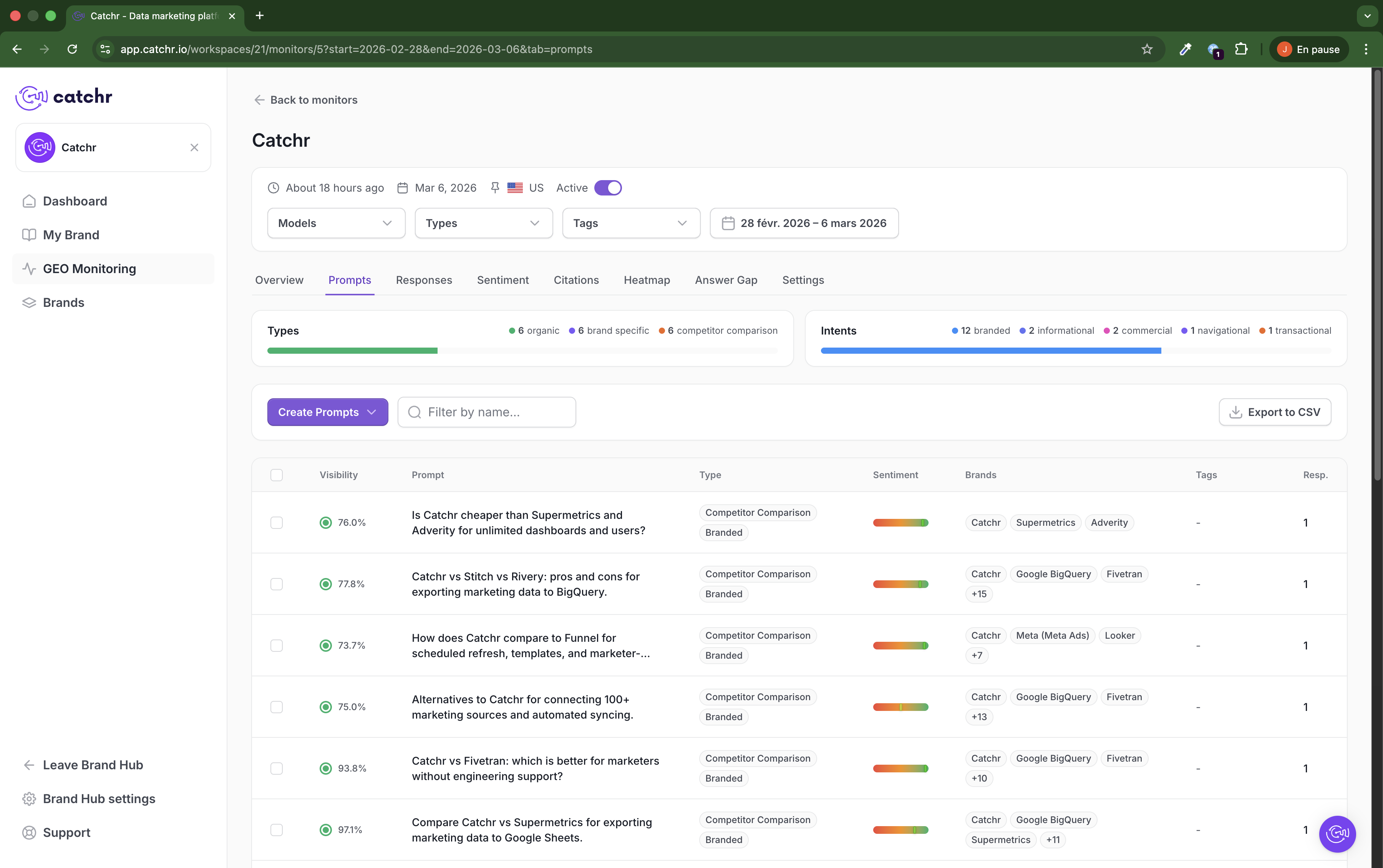
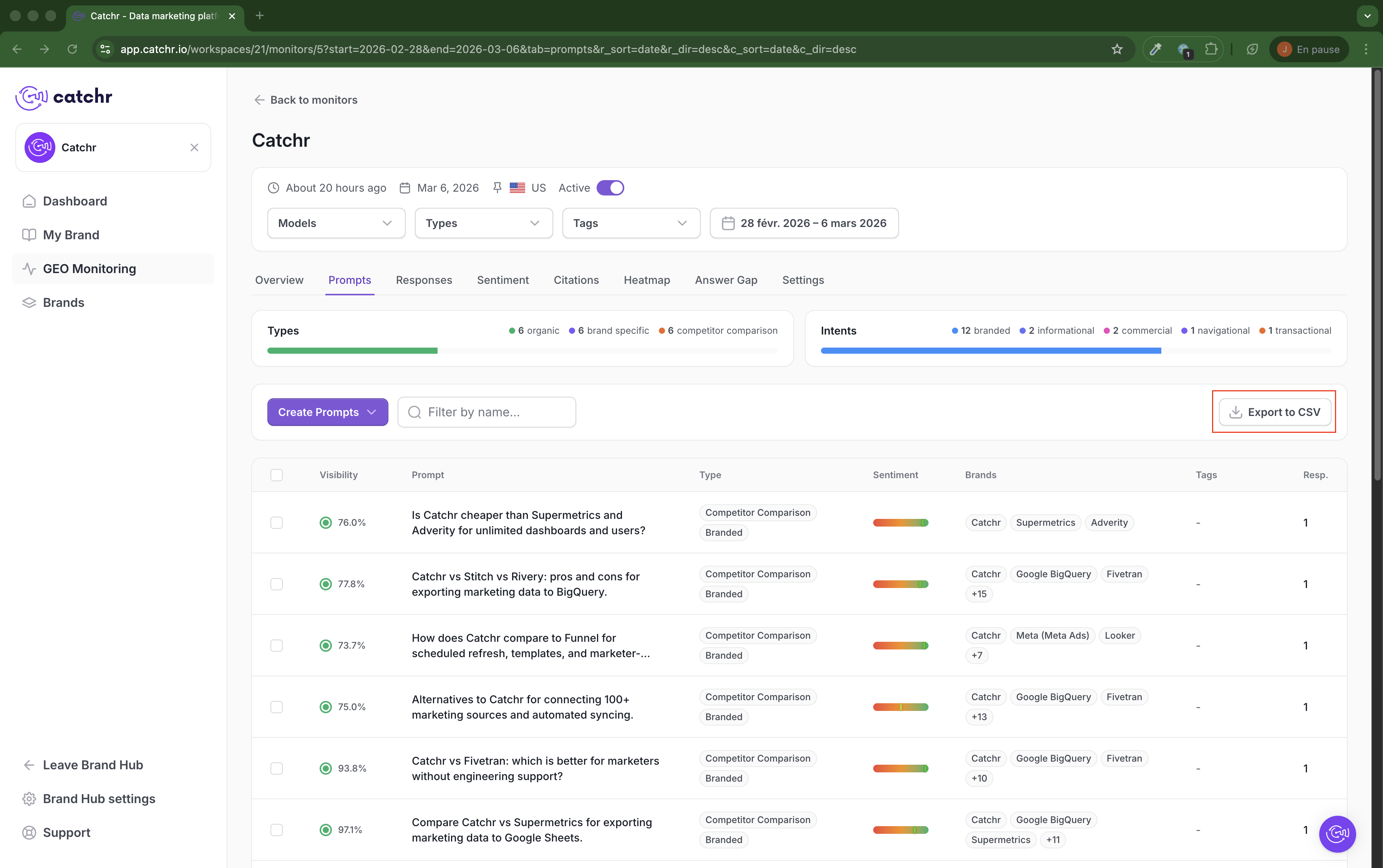
The Prompts tab is the main workspace for viewing and managing all prompts linked to a monitor.
At the top of the page, you can use:
- Models, Types, and Tags filters
- A Date range picker
- A Create Prompts menu
- A Filter by name search bar
- Export to CSV
The summary cards above the table help you understand your current prompt library:
- Types show the distribution of prompt categories, such as organic, brand-specific, or competitor comparison.
- Intents show the distribution of prompt intents, such as branded, informational, commercial, navigational, or transactional.
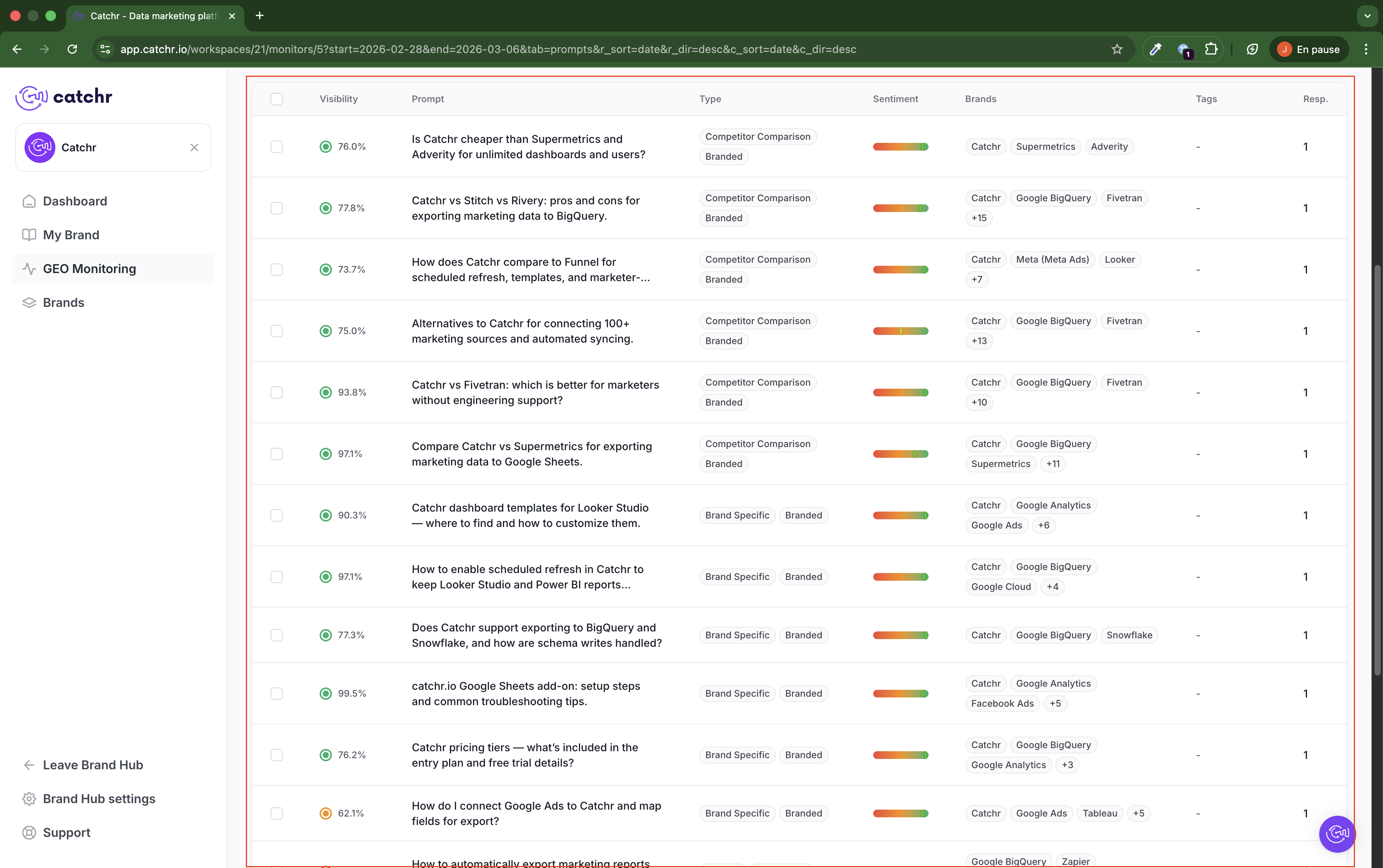
The prompt table shows one row per prompt, with key columns including:
- Select: checkbox used for bulk actions.
- Visibility: the visibility score for that prompt.
- Prompt: the exact tracked query.
- Type: the prompt category.
- Sentiment: the response sentiment indicator for that prompt.
- Brands: brands detected in the results.
- Tags: labels applied to the prompt.
- Resp.: the number of collected responses.
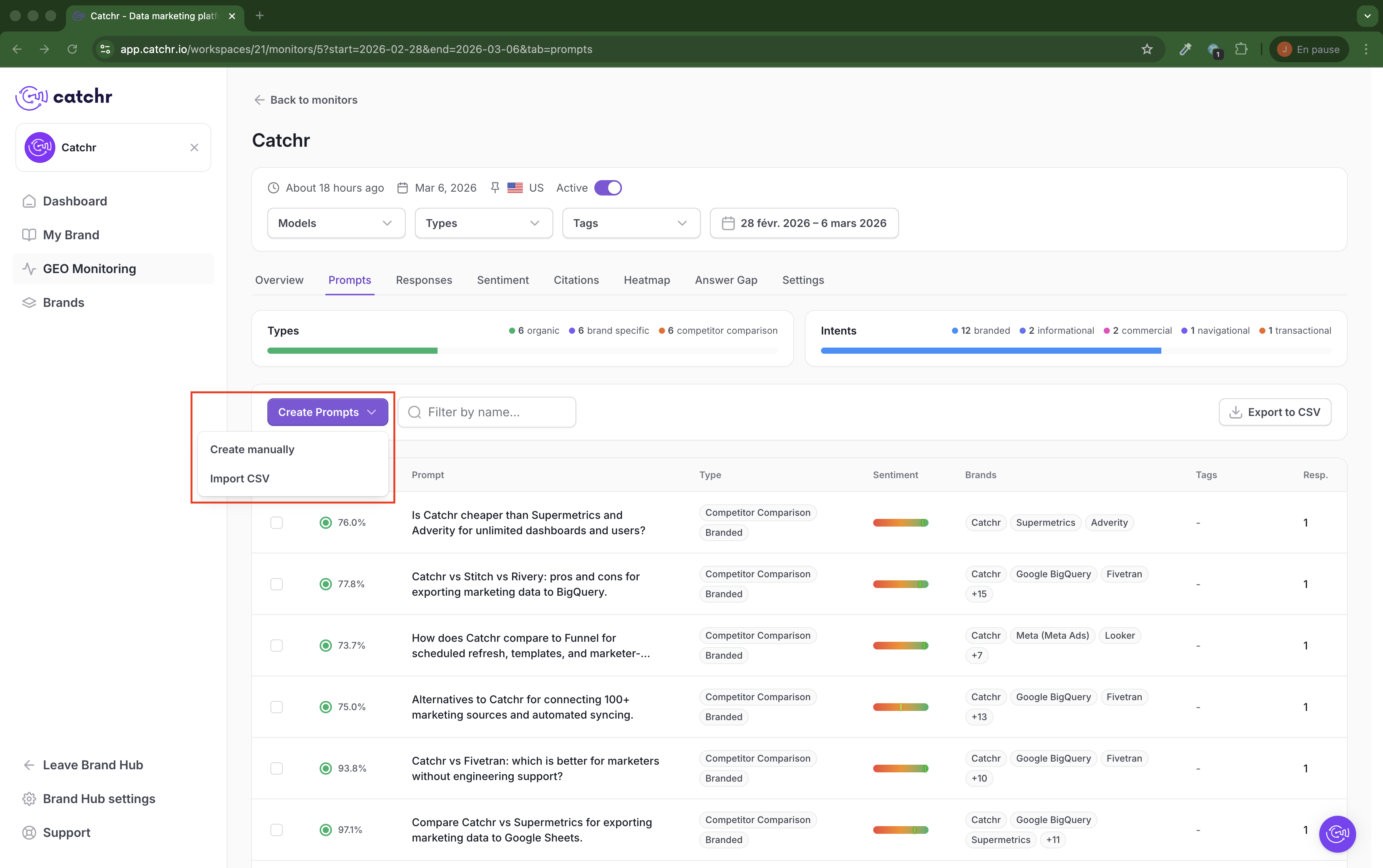
Open Create Prompts to access the available creation methods.
You can:
- Add prompts manually
- Import prompts from a CSV file
This is the starting point for building or expanding your prompt library.
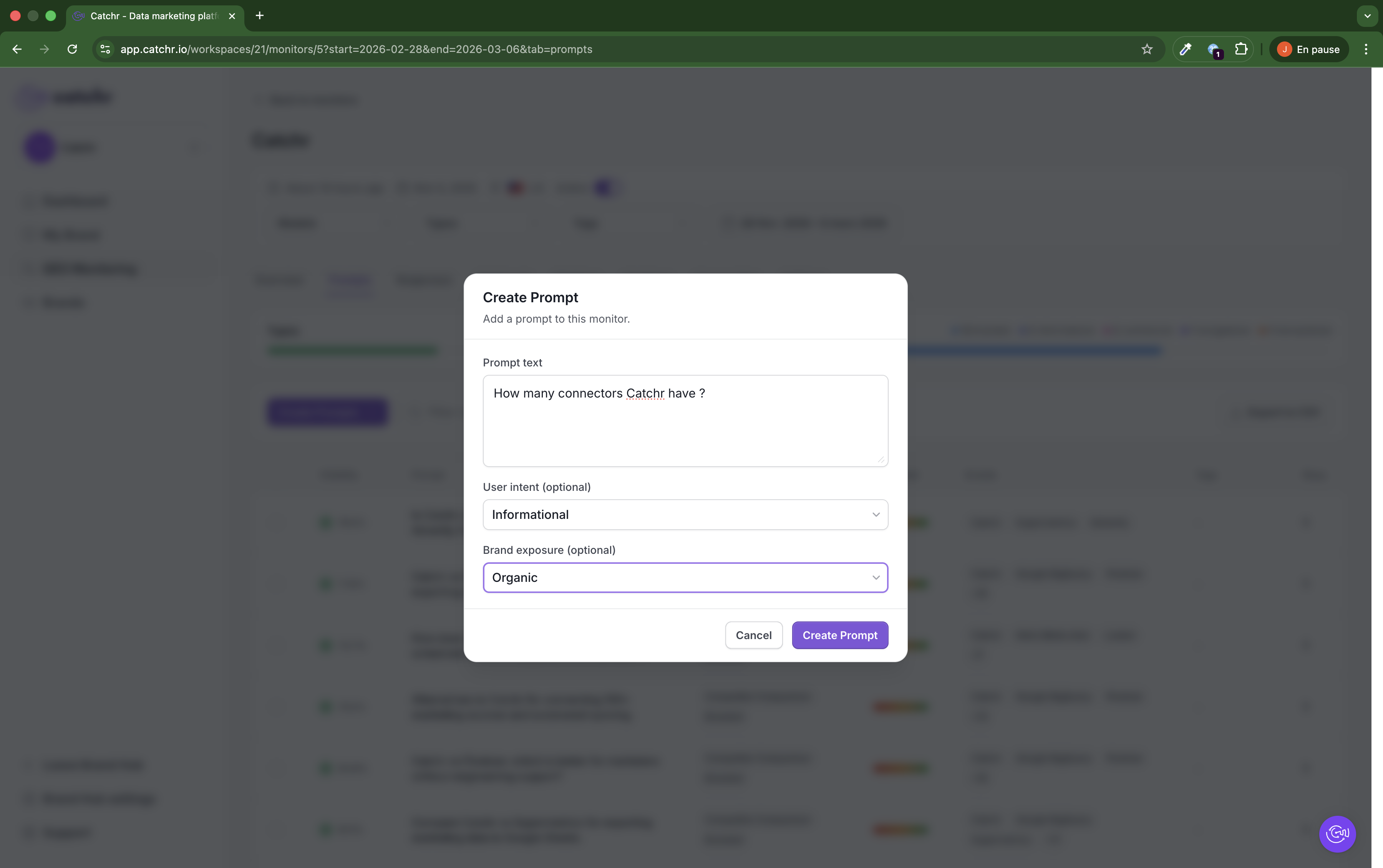
Use manual creation when you want to add a small number of targeted prompts.
This is useful when:
- You want to test a new prompt idea quickly
- You want to add a specific brand, competitor, or use-case query
- You want tighter control over prompt wording
When creating a prompt manually, fill in:
- Prompt text: the question GEO will track
- User intent (optional): the search or question intent, such as informational
- Brand exposure (optional): the expected exposure type, such as organic
Then click Create Prompt.
When creating prompts manually, keep wording consistent with the market, language, and brand positioning tracked by the monitor.
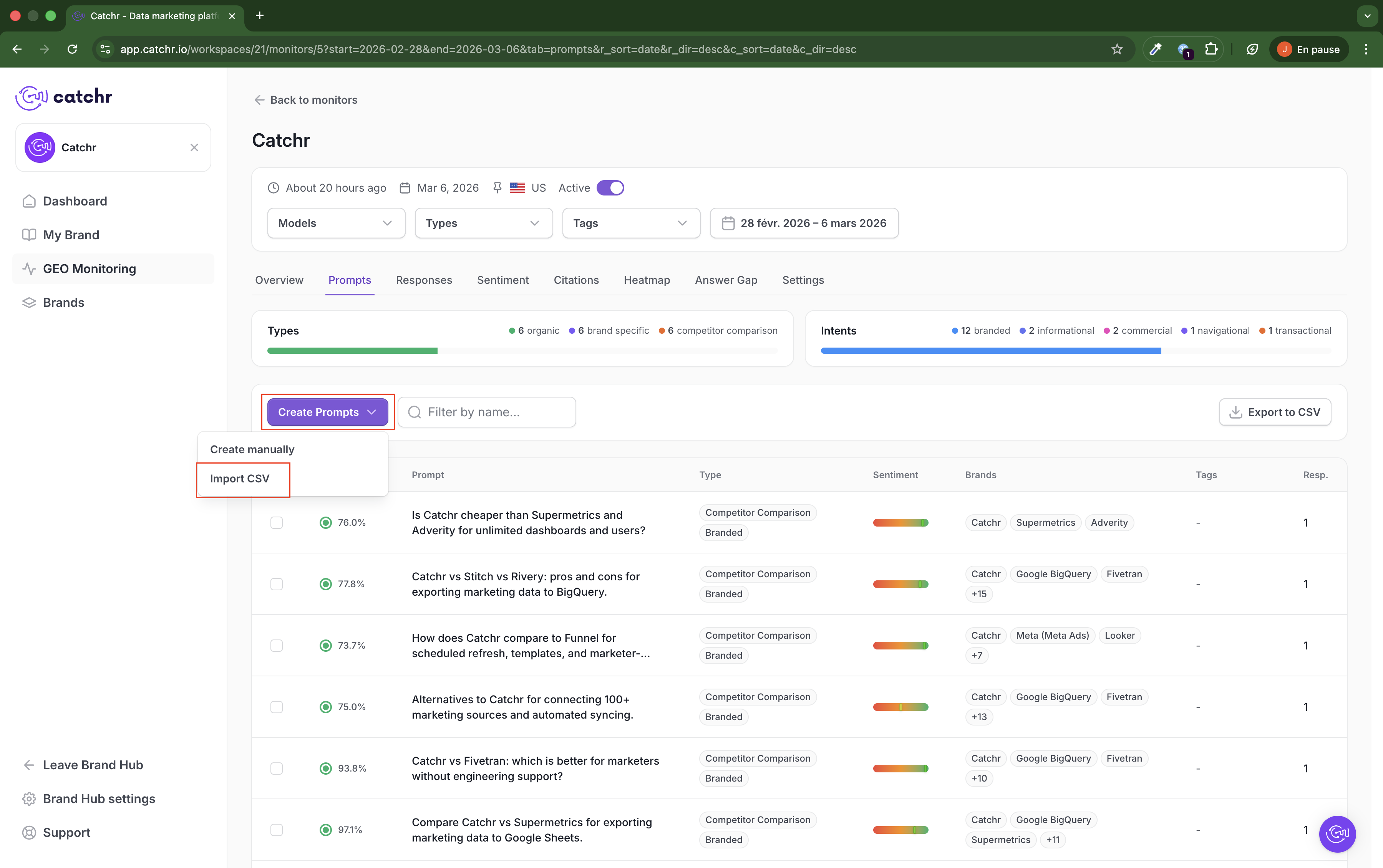
Use CSV import when you want to add prompts in bulk.
Best practice:
- Export the existing prompt list first
- Add your new prompts while keeping the same CSV structure
- Import the updated CSV back into GEO
This is the safest way to avoid formatting issues and keep the import compatible with GEO.
Use the prompt table to review what is already tracked in your monitor.
For each prompt, GEO shows:
- Visibility: the visibility score for that prompt.
- Prompt: the exact question being tracked.
- Type: the prompt category, such as brand specific or competitor comparison.
- Sentiment: the sentiment indicator associated with responses for that prompt.
- Brands: the brands detected in the results for that prompt.
- Tags: the labels associated with that prompt.
- Resp.: the number of collected responses for that prompt.
Use the search bar and filters to narrow the list and focus on the prompt set you want to review.
Use Export to CSV when you want to download your current prompt list.
This is especially useful before a CSV import, because it gives you the correct file structure to reuse.
- Use manual creation for a few high-value prompts.
- Use CSV import for bulk prompt updates.
- Use Export to CSV before editing a file for reimport.
- Keep the exported CSV structure unchanged when preparing an import.