This tutorial explains how to use the Responses tab to review monitored AI answers and understand the evidence attached to each result.
You will learn how to:
- Review response results
- Search and export responses
- Read response-level fields
- Open response details
- Understand visibility, sentiment, brands, citations, and date
- You already created a monitor.
- You opened the monitor detail page.
- You selected the Responses tab.
The Responses tab shows the AI answers collected for your monitor.
Use this page when you want to review actual response content instead of prompt-level summaries.
At the top of the page, you can use:
- Search responses to find a specific response or topic
- Export to CSV to download the current response list
Use search when you want to narrow the review to a specific topic, brand mention, or wording pattern.
Each row represents one collected response.
The table helps you compare responses side by side using:
- Visibility: the visibility score for that response.
- Response: the response text captured by GEO.
- Model: the AI model that generated the response.
- Sentiment: the sentiment indicator for that response.
- Brands: the brands detected in that response.
- Citations: the number of citations found in the response, shown as a ratio.
- Date: when the response was collected.
Use this table to identify which responses mention your brand, how positively your brand is described, and whether supporting citations are present.
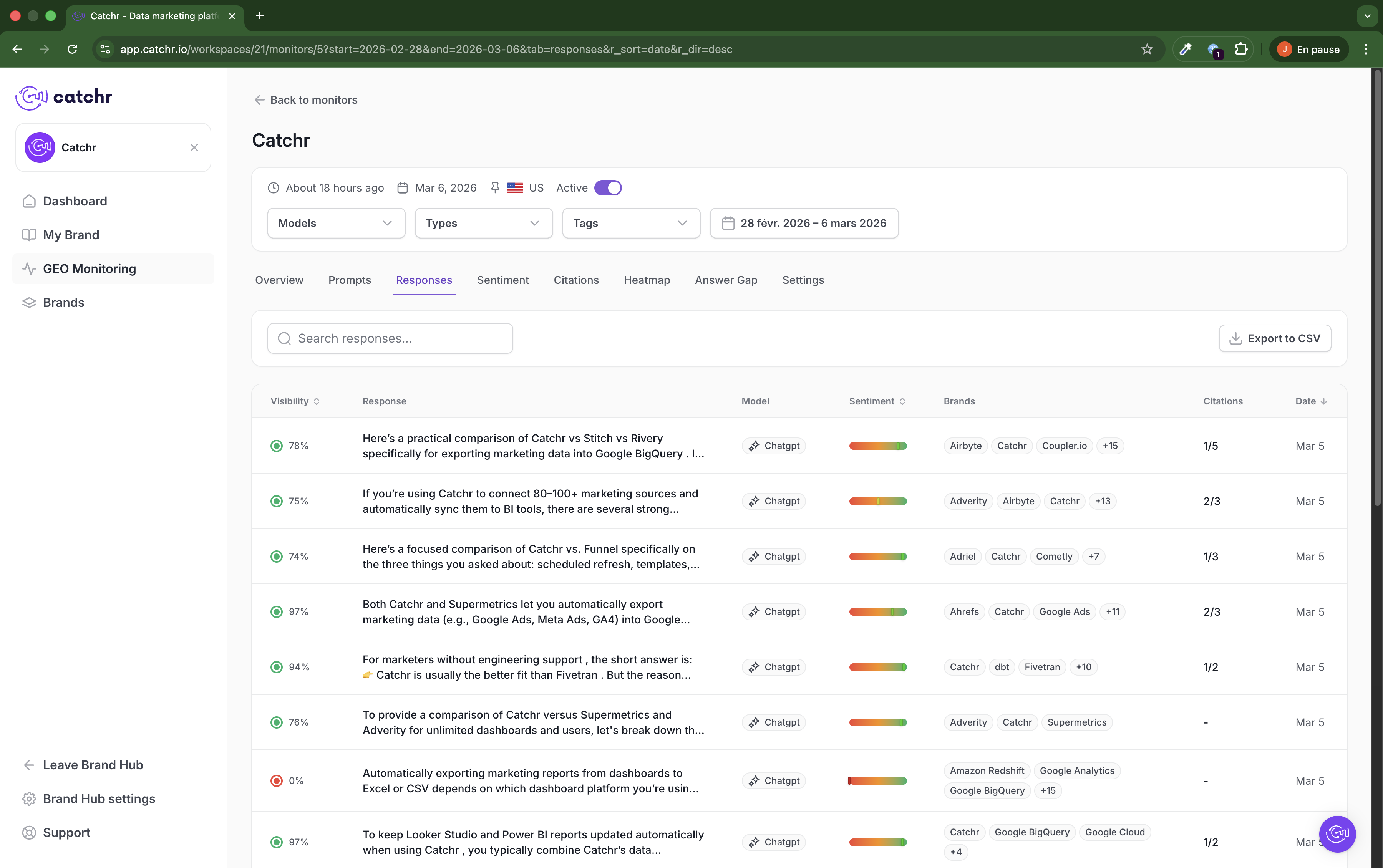
The Sentiment column helps you review the tone of each response.
Use it to understand whether a response describes your brand in a more positive, neutral, or negative way.
This is useful when:
- Comparing how different prompts present your brand
- Checking whether competitor comparisons are favorable
- Reviewing brand perception in collected answers
The Citations column shows how many citations are attached to a response.
Use it to understand whether the answer includes supporting evidence and how much sourcing is present.
In the response list, citations are shown as a ratio. This helps you quickly compare responses that are more or less supported by cited evidence.
The Brands column shows the brands detected in each response.
Use it to:
- Confirm whether your brand is mentioned
- Identify recurring competitors or related brands
- Compare how often different brands appear in the same answer set
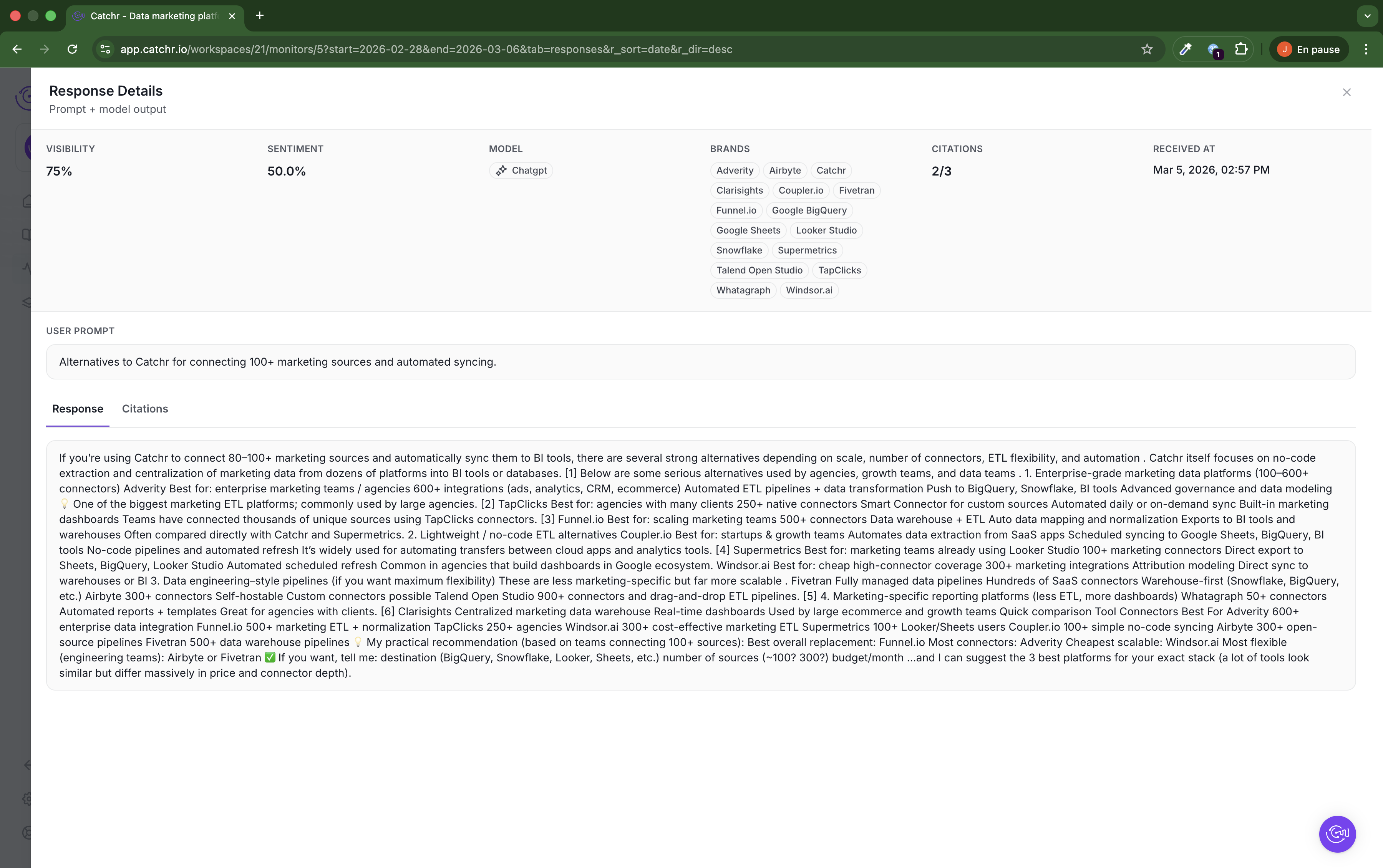
Select a response from the list to open the Response Details drawer.
This drawer shows the full response context, including:
- Visibility: the visibility score for this specific response
- Sentiment: the sentiment score for this specific response
- Model: the AI model that generated the response
- Brands: all detected brands found in the response
- Citations: the citation count shown for the response
- Received at: the date and time the response was collected
Below the summary fields, GEO also shows the original User Prompt that generated the answer.
The drawer includes two tabs:
- Response: the full model answer
- Citations: the evidence sources attached to that answer
Use this view when you want to move from list-level review to one specific response.
The Response tab shows the full text generated by the model.
Use it to:
- Read the complete answer without truncation
- Check how your brand is described in context
- Compare the answer with the original user prompt
- Review whether the answer includes competitor mentions, recommendations, or supporting claims
This is the best place to validate how the model actually answered the query.
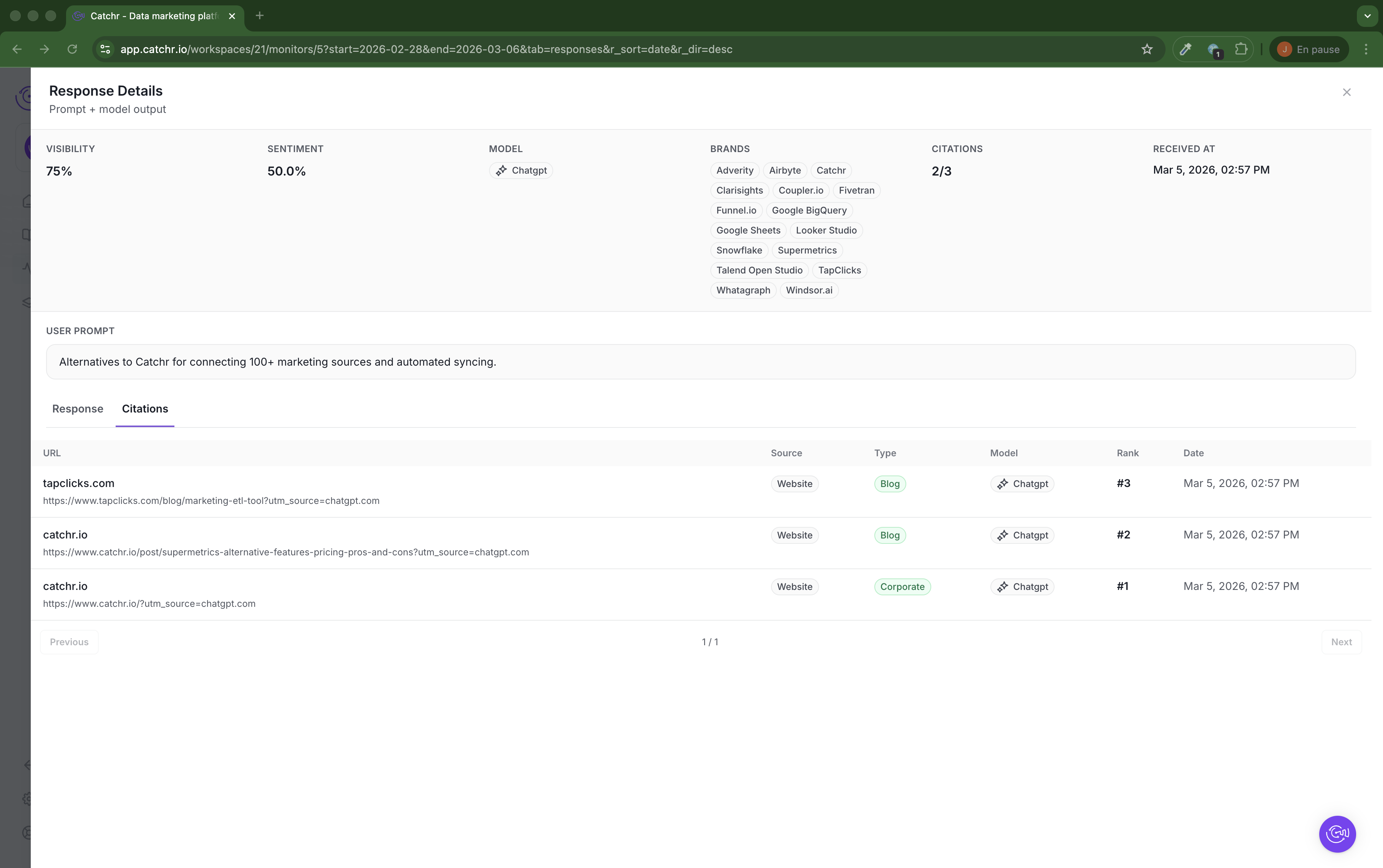
The Citations tab lists the sources used for the selected response.
For each citation, GEO shows:
- URL: the cited page
- Source: the source category, such as a website
- Type: the page type, such as blog or corporate
- Model: the model associated with the response
- Rank: the citation position in the result list
- Date: when the response was received
Use this view to understand where the answer is pulling evidence from and whether your brand's own pages are part of the cited sources.
- Use Search responses to narrow a review quickly.
- Use Sentiment to evaluate tone at the answer level.
- Use Brands to see which brands are actually mentioned.
- Use Citations to spot responses with stronger supporting evidence.
- Open Response Details to inspect one answer in full.
- Use Export to CSV when you want to analyze results outside GEO.