This tutorial explains how to install the Catchr MCP app for OpenAI.
It covers two different setups:
- Personal ChatGPT accounts
- OpenAI workspace accounts
Make sure you know which type of OpenAI account you are using:
- Personal account: your own ChatGPT account
- Workspace account: an OpenAI team or company workspace managed by an owner or admin
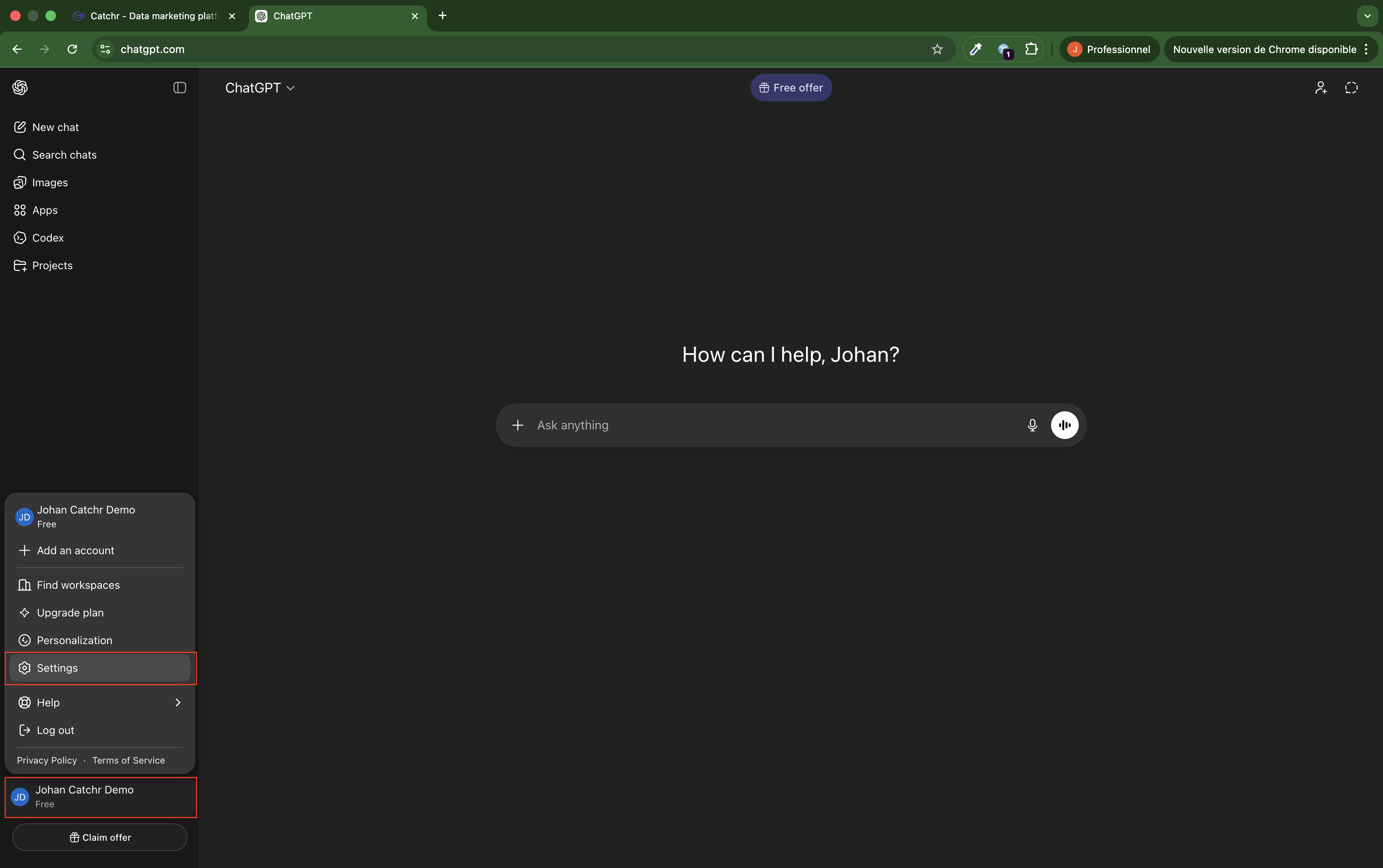
Open ChatGPT settings, go to Apps, then open the advanced app settings and enable Developer mode.
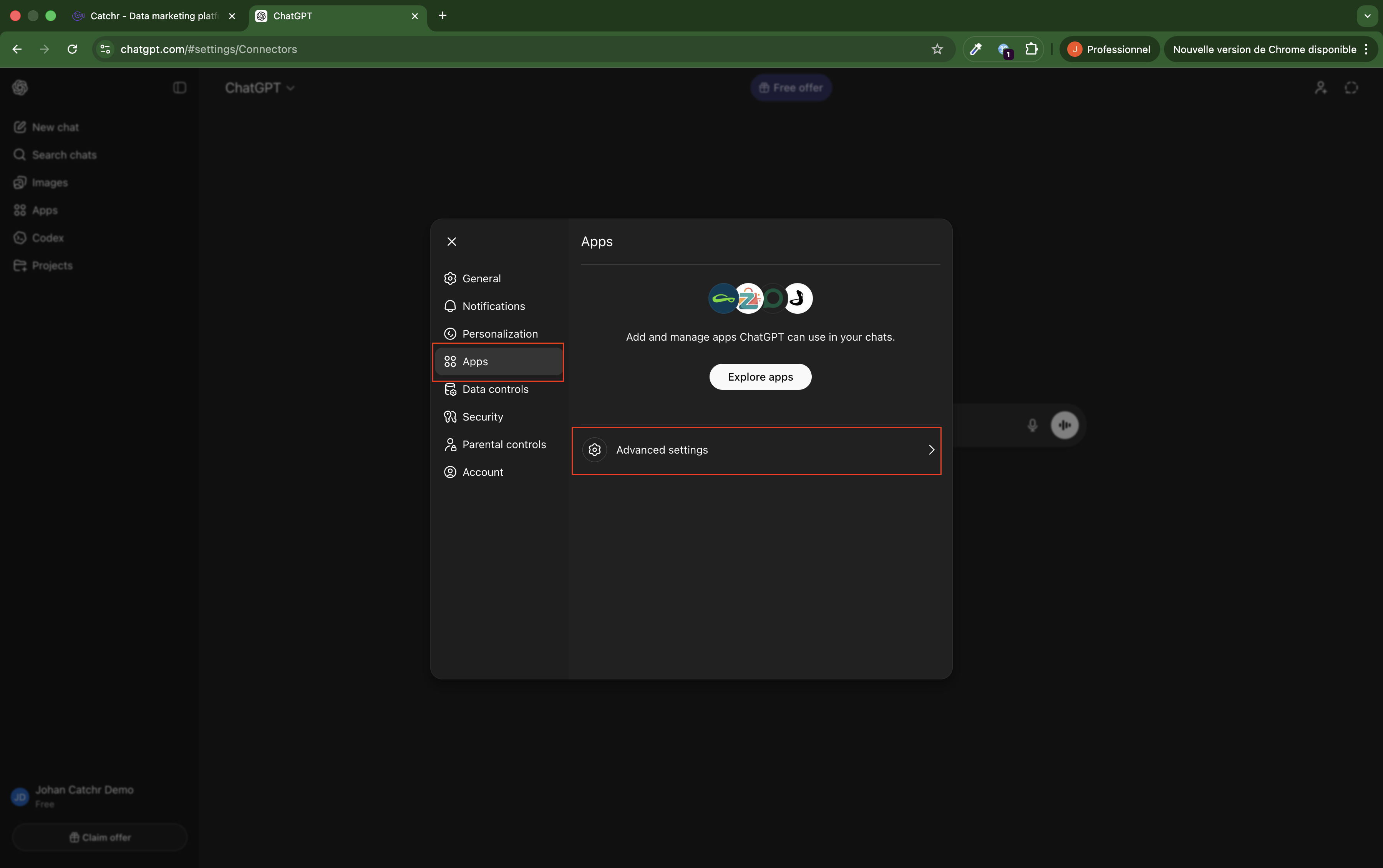
After developer mode is enabled, create a new app in ChatGPT.
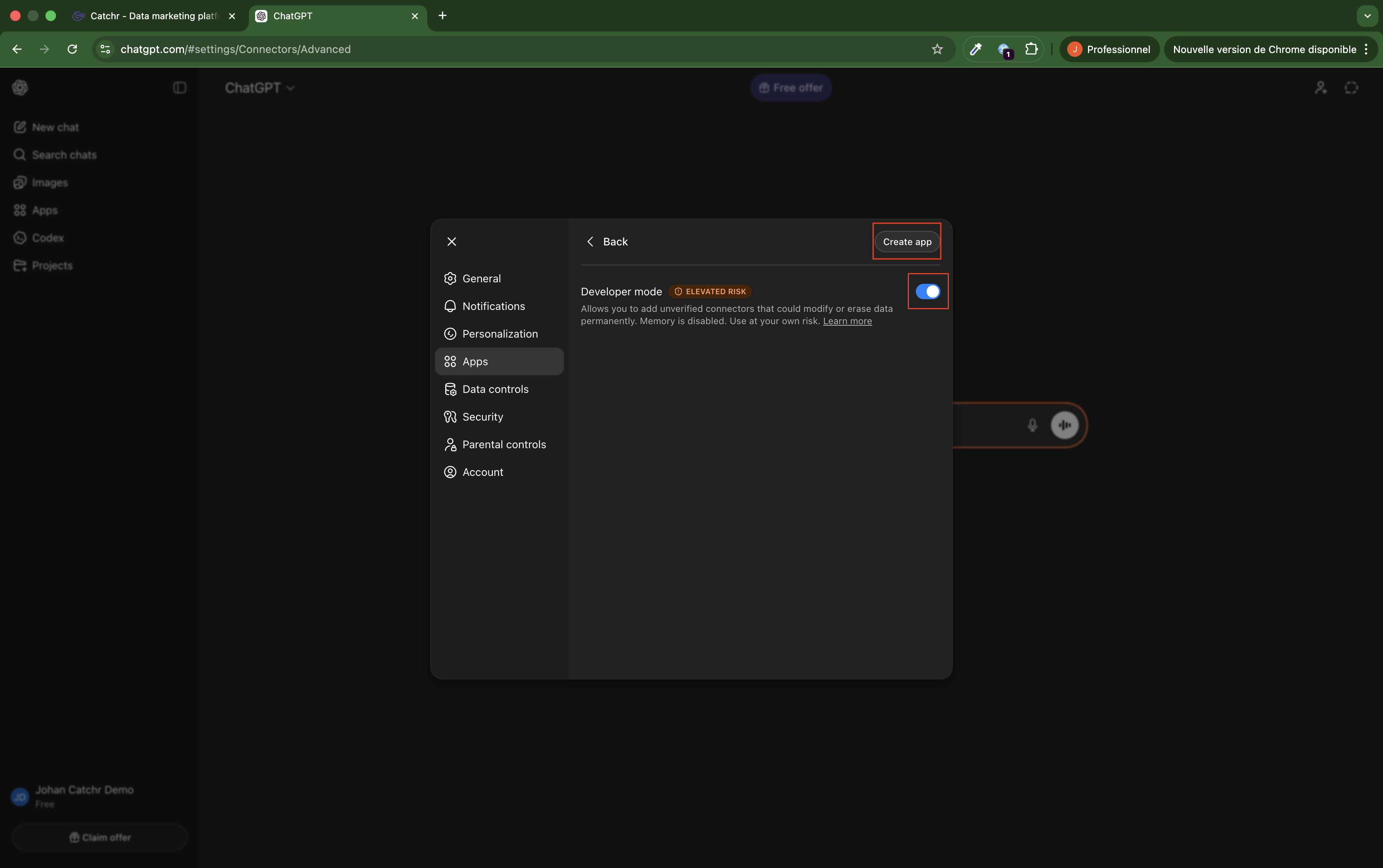
Complete the requested app details in ChatGPT to start the app setup flow.
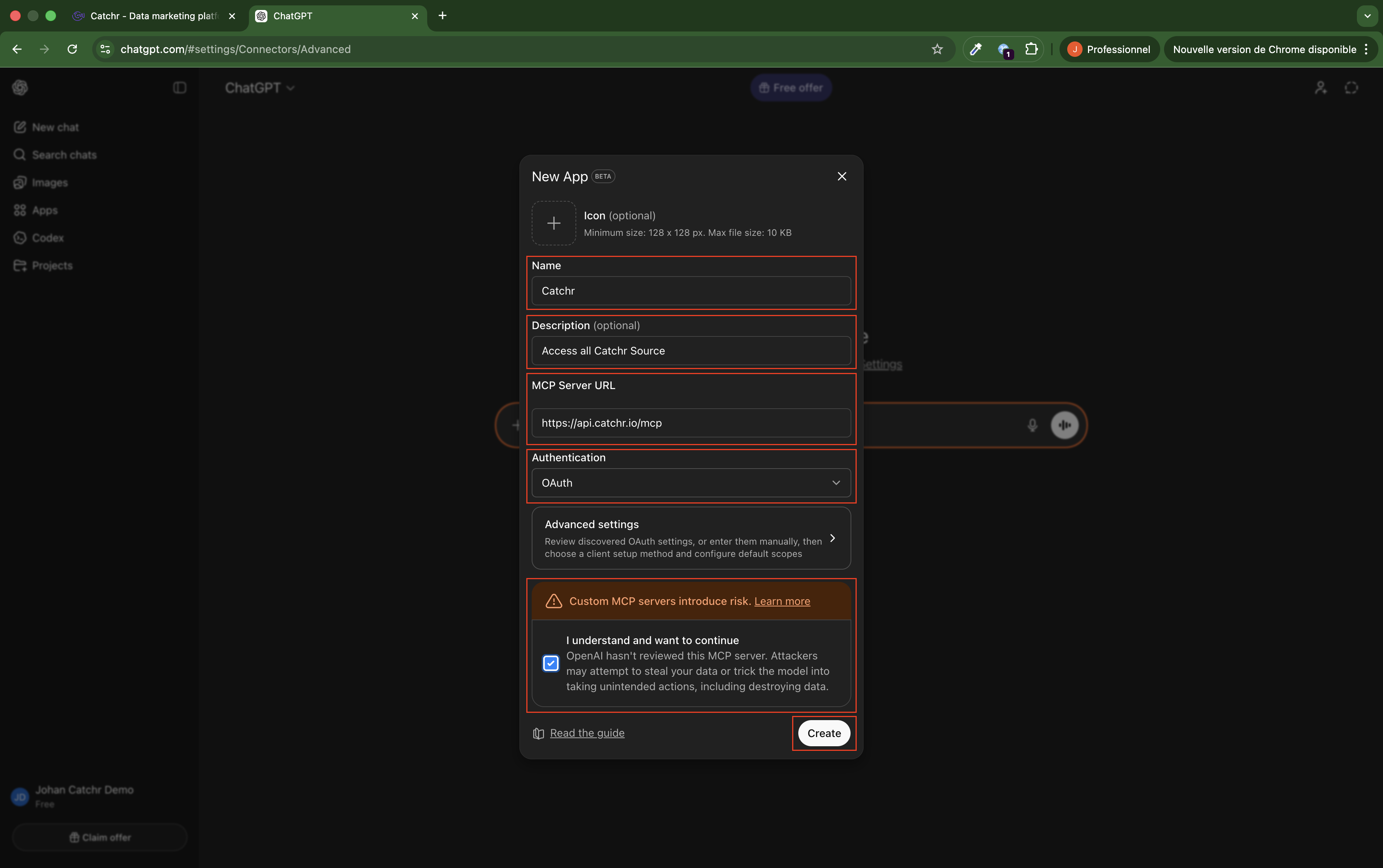
During setup, ChatGPT will ask you to sign in on app.catchr.io.
Complete the Catchr login flow to finish creating the app.
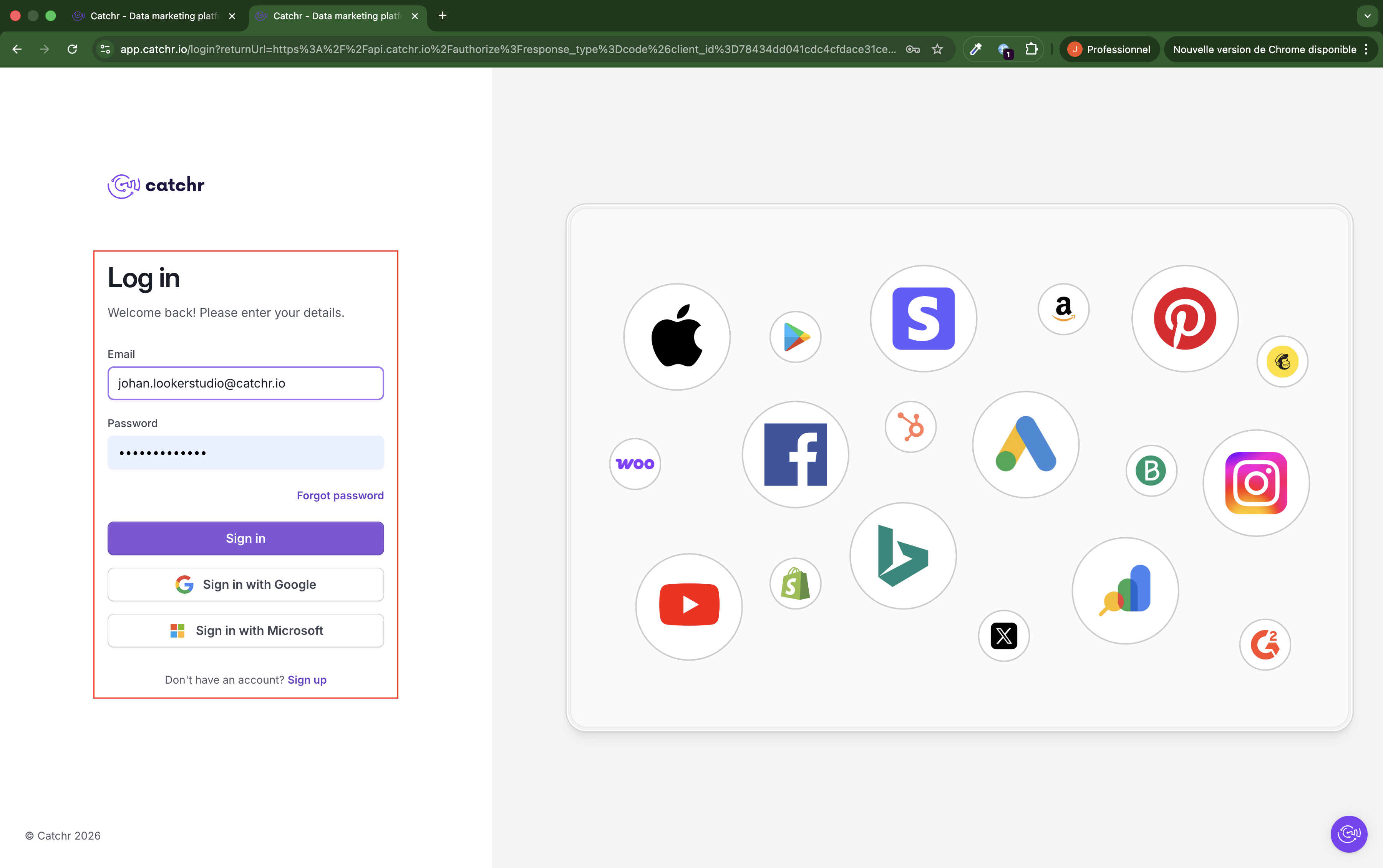
When you create the app, ChatGPT will ask you to log in to app.catchr.io.
If you are already logged in to Catchr, the page may reload in a loop.
If this happens:
1. Log out of app.catchr.io
2. Start the app creation flow again in ChatGPT
3. Log in to Catchr again when prompted
This should let you complete the app creation flow correctly.
For workspace accounts, the app must be installed by the OpenAI workspace owner or admin.
Once the app is installed for the workspace, invited users in that OpenAI workspace can access it.
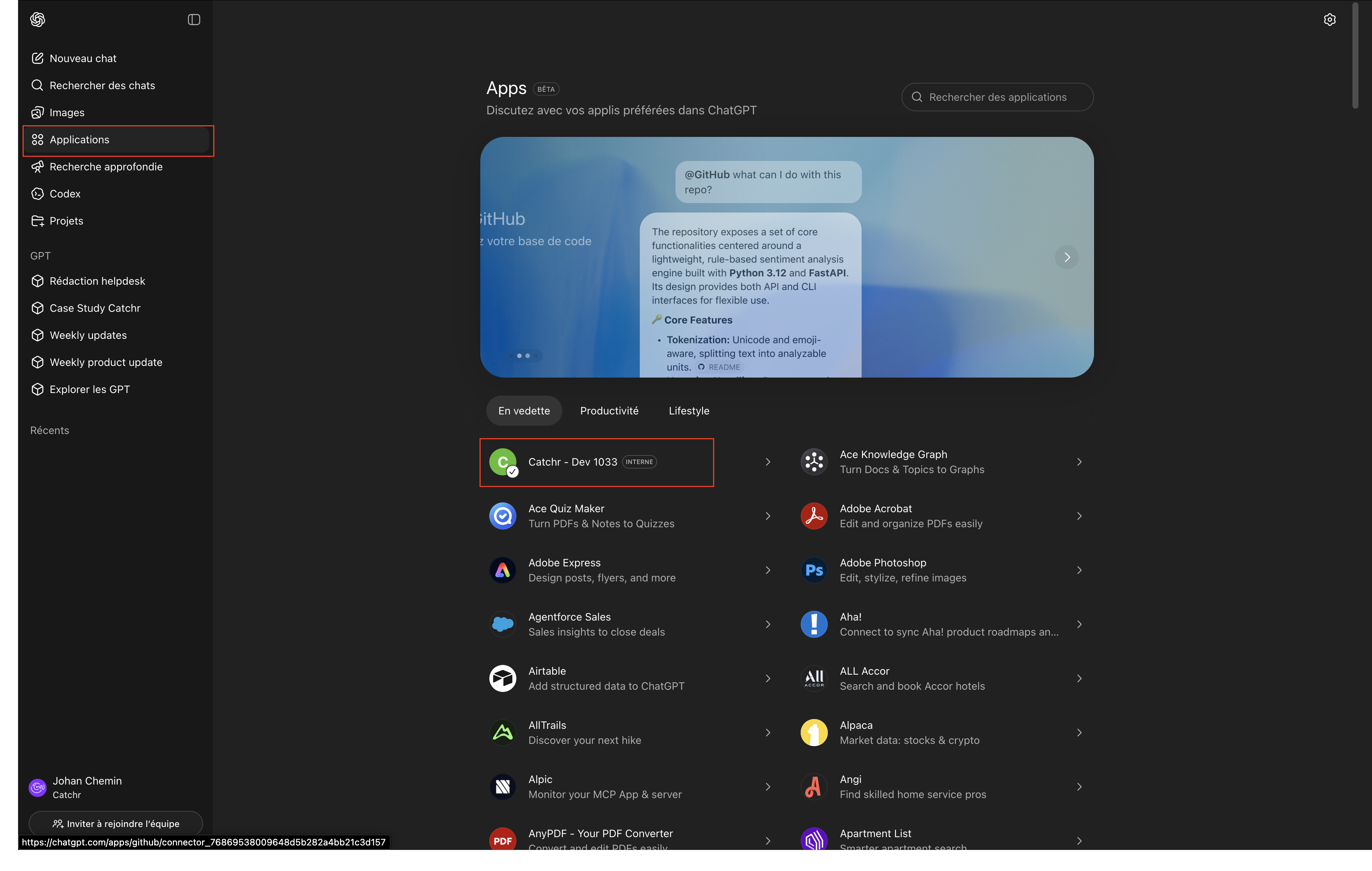
After the workspace installation is complete, users in the workspace can find the Catchr app in the OpenAI app list.
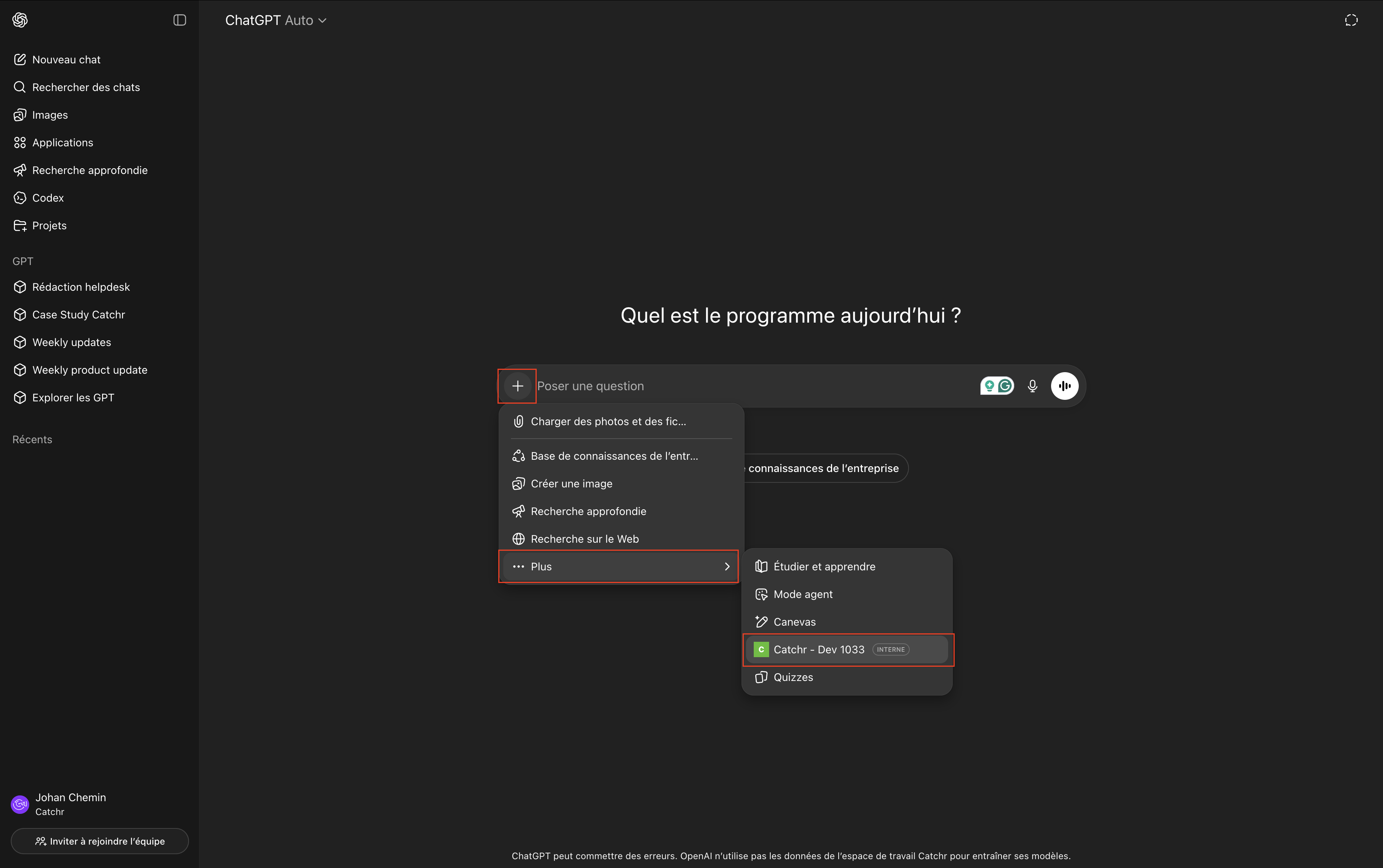
To use the app in ChatGPT, open a new prompt, click the + button, open Plus, then select the Catchr app.
Once the app is attached to the prompt, ChatGPT can use Catchr in that conversation.
- Use the personal account flow if you are installing the app for your own ChatGPT account.
- Use the workspace account flow if your OpenAI account is managed inside a company or team workspace.
- For workspace installations, users cannot complete the installation themselves unless the workspace owner or admin has already installed the app.
- If the Catchr login page reloads in a loop, log out from app.catchr.io and restart the flow.