This tutorial explains how to invite someone outside your Catchr account to connect a source on your behalf.
This is especially useful for agencies that need clients to connect their own ad, analytics, ecommerce, or social accounts without giving them access to the Catchr workspace.
When you send a custom link:
- The invited person receives a one-time email link
- They connect the source themselves by following the platform authorization flow
- The source appears in the Catchr account of the person who sent the invitation
- The invited person does not get access to your Catchr workspace
Use this flow when:
- You manage multiple clients in one Catchr account
- You want a client to connect their own source securely
- You do not want to give that client access to the rest of your Catchr environment
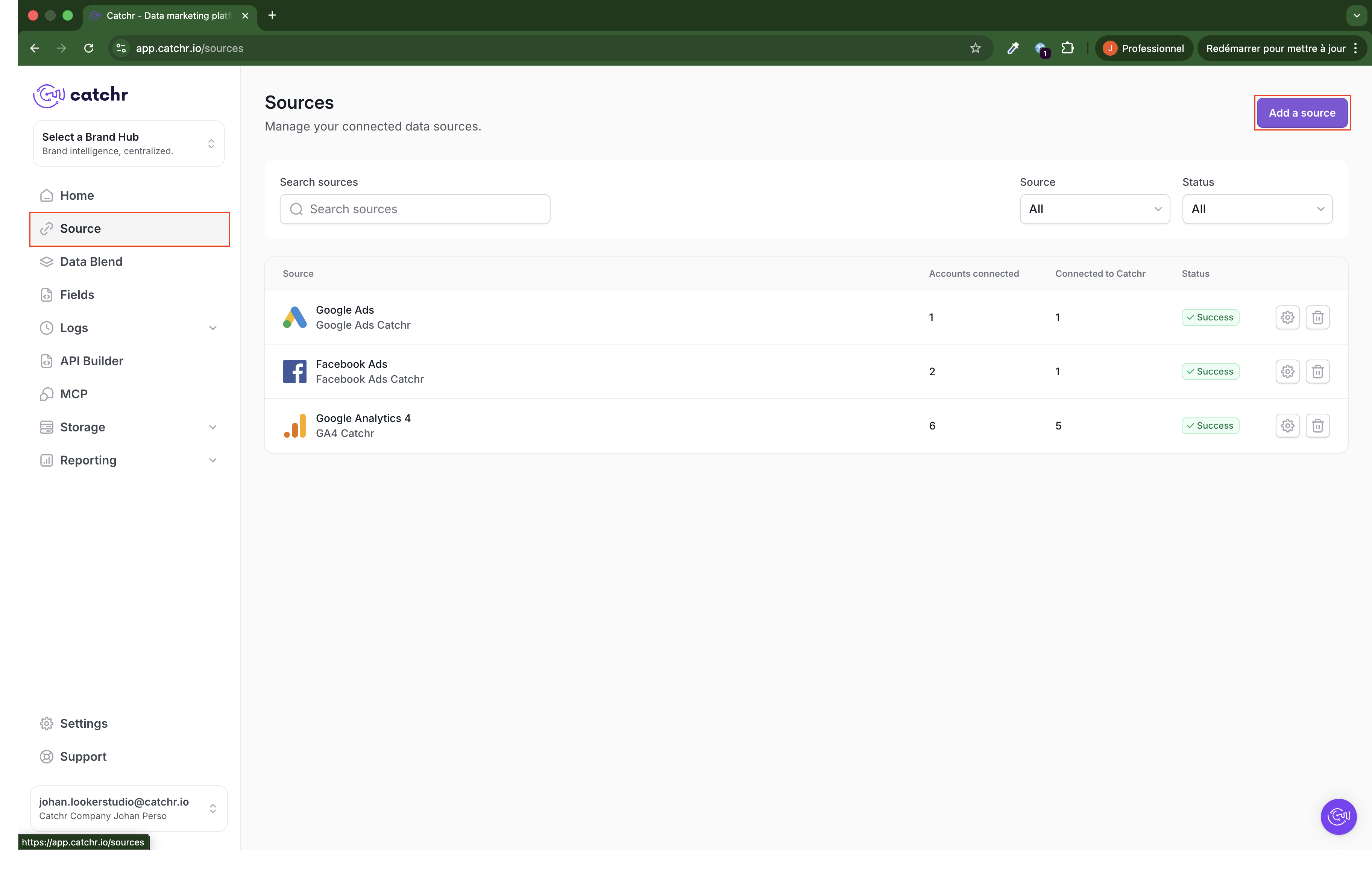
From the left sidebar, click Source, then click Add a source.
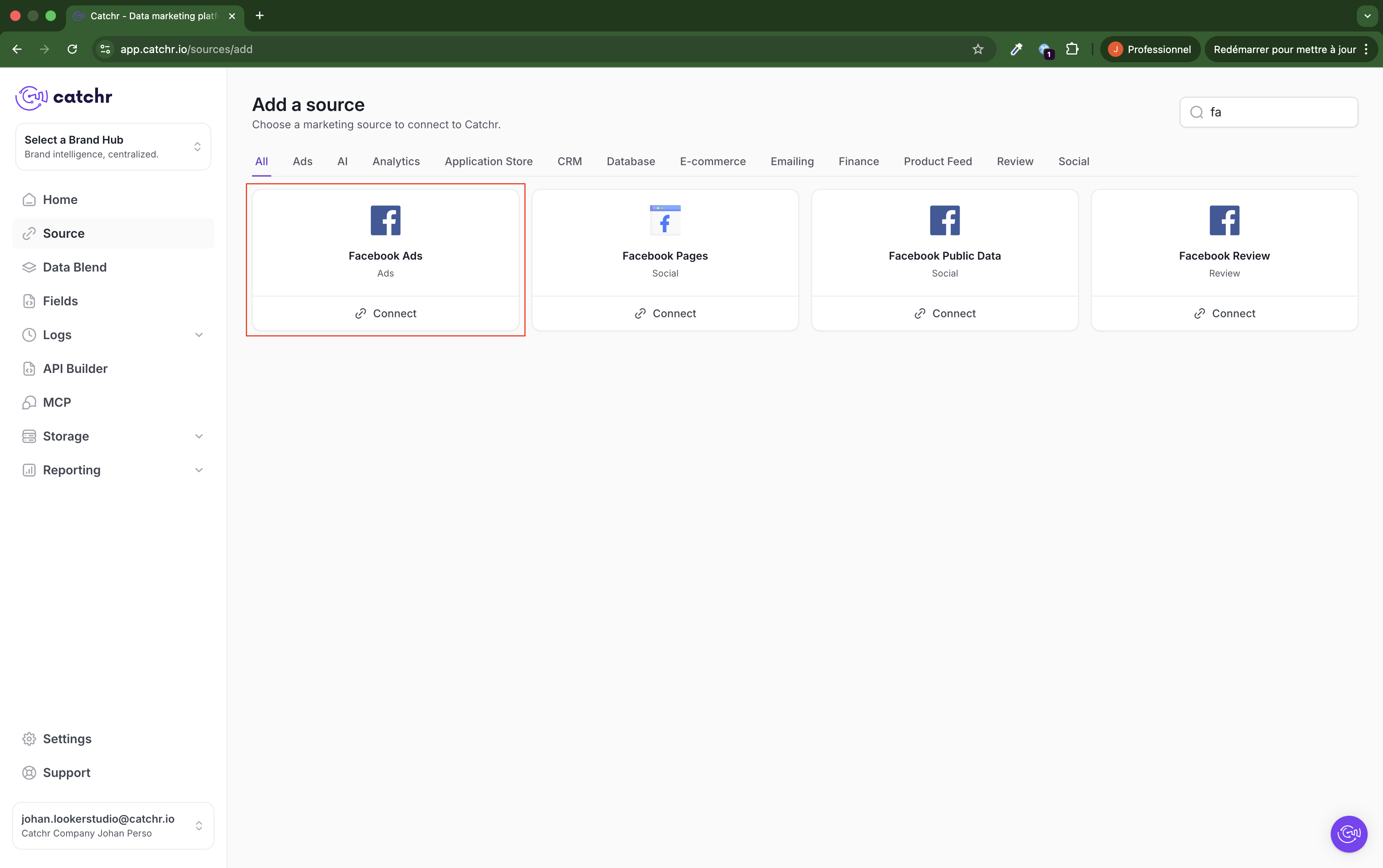
Search for the platform you want to add, then click Connect on the relevant source.
The exact source shown in this tutorial is Facebook Ads, but the same flow can be used for other supported platforms.
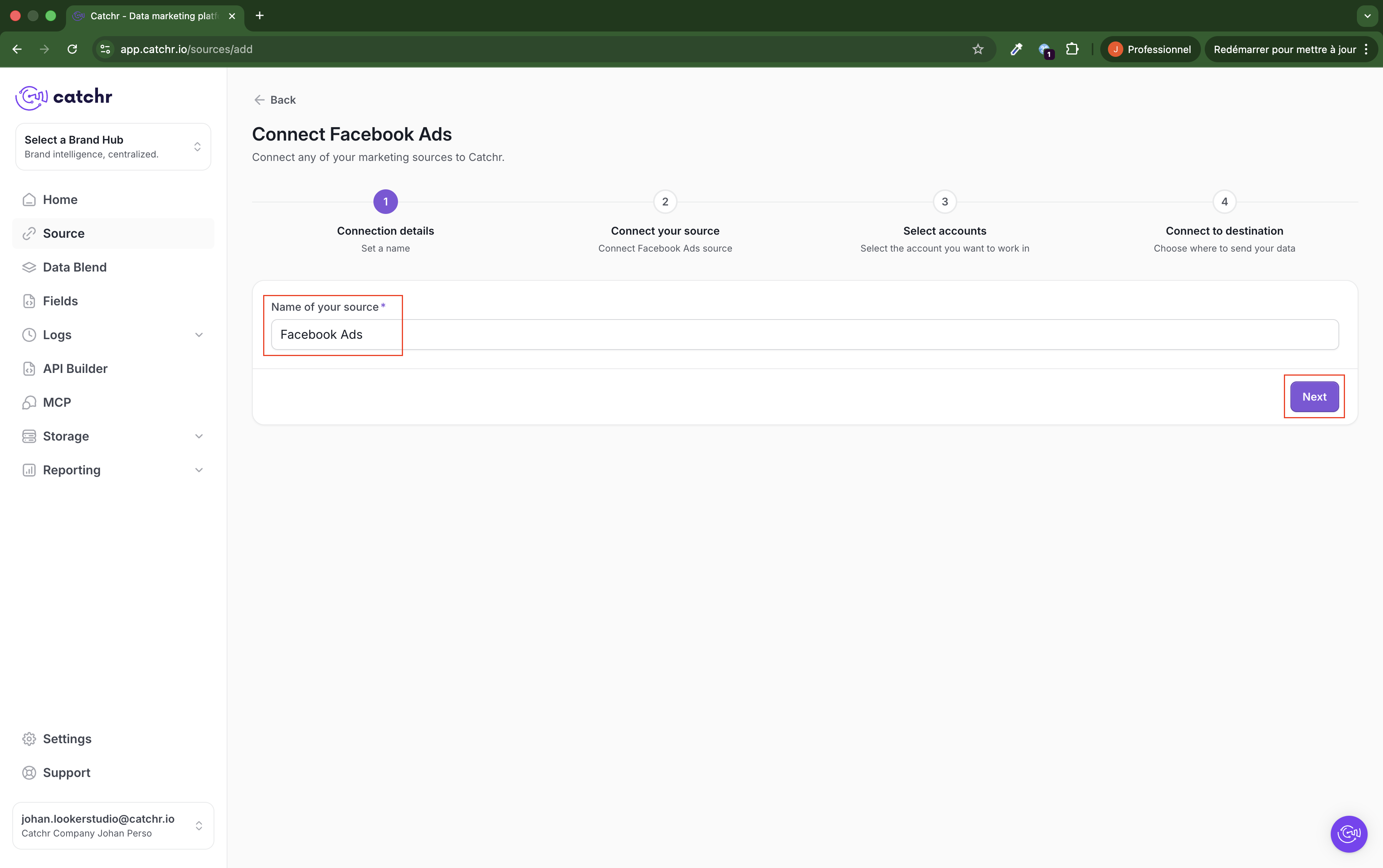
Enter a clear name for the source, then click Next.
Choose a name that makes the source easy to identify later, especially if you manage multiple clients or multiple accounts on the same platform.
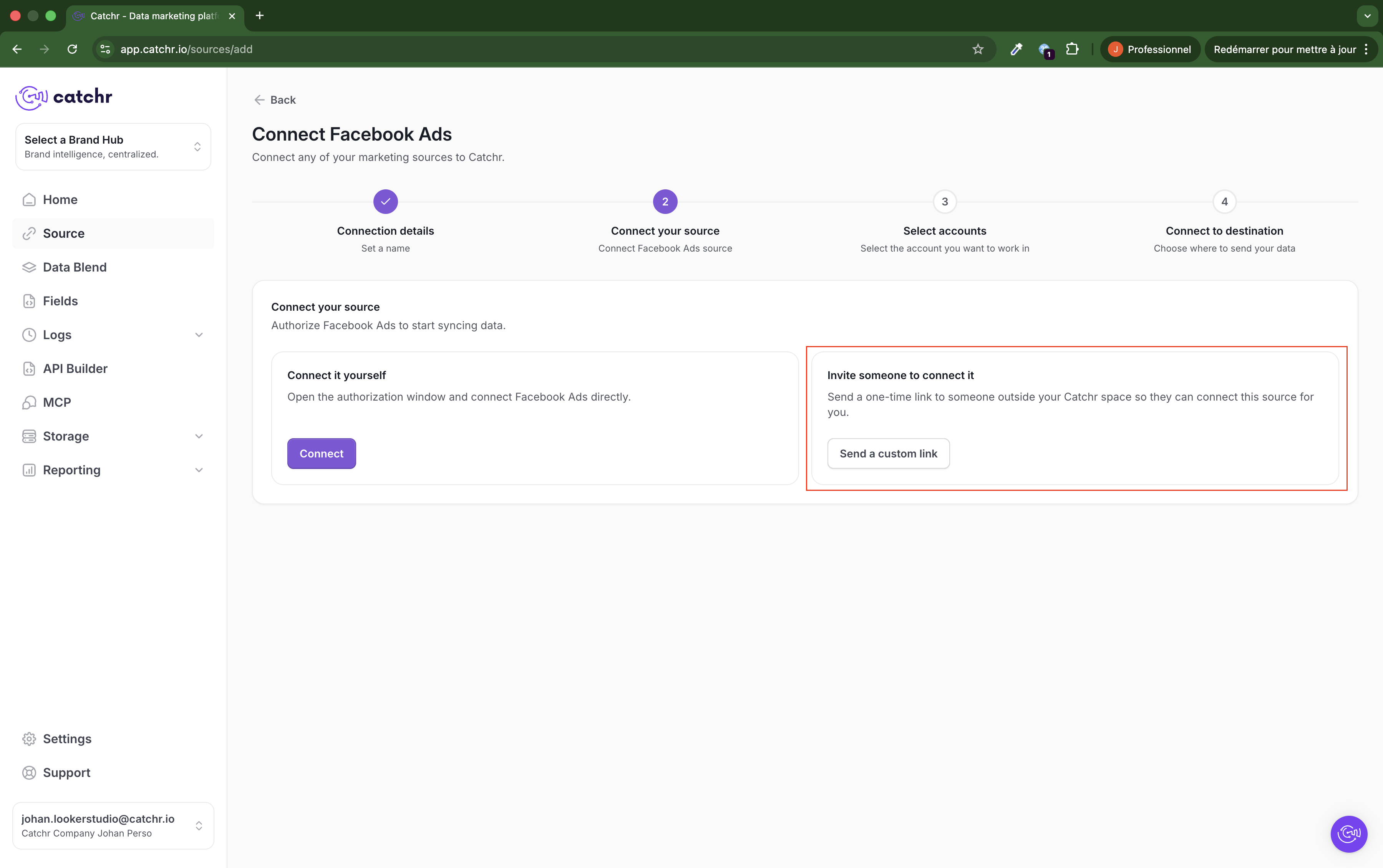
In step 2 of the connection flow, you have two options:
- Connect it yourself if you want to complete the authorization directly
- Invite someone to connect it if another person should connect the source for you
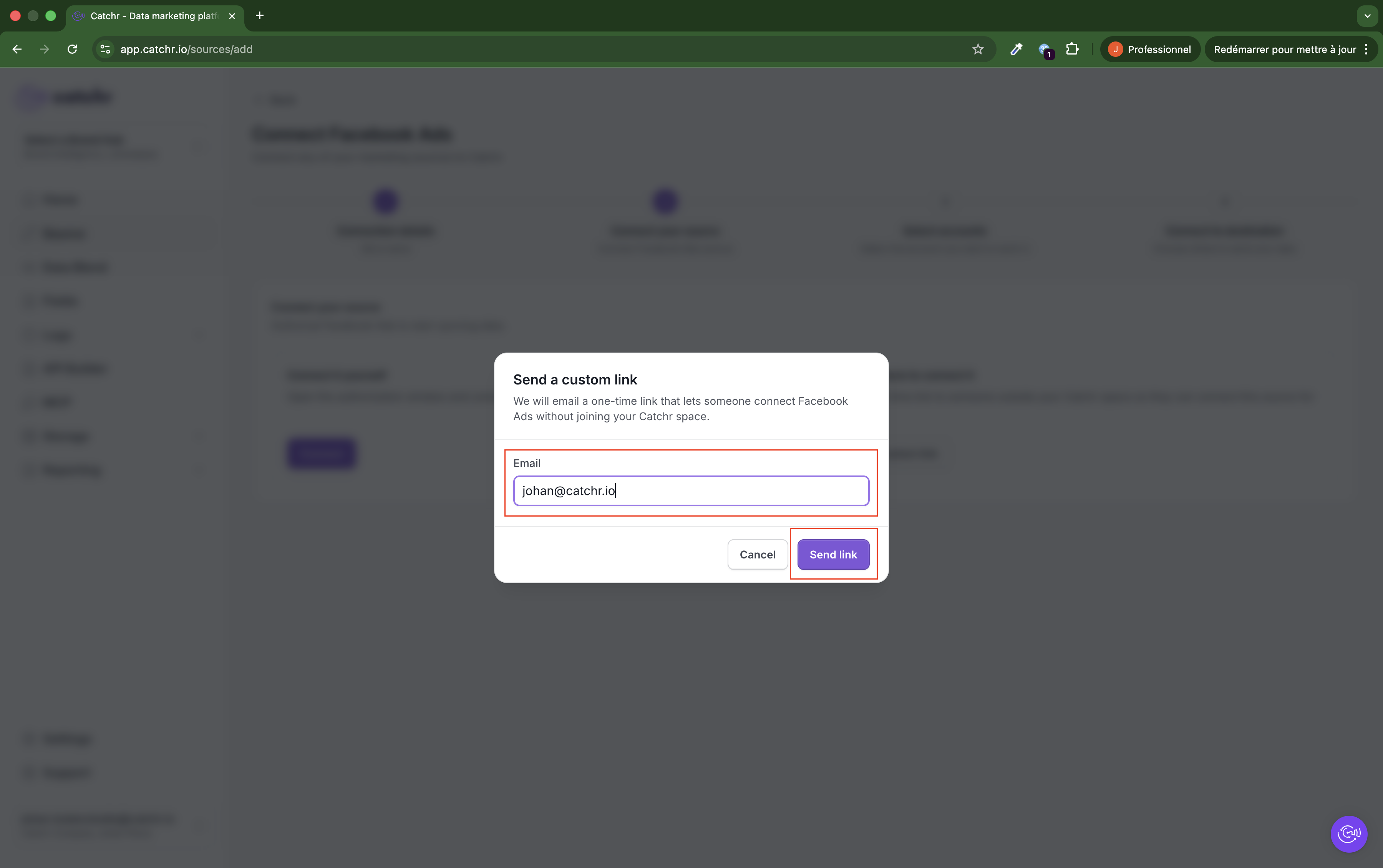
To invite an external user, click Send a custom link.
Enter the email address of the person who should connect the source, then click Send link.
This sends a one-time invitation link to that person.
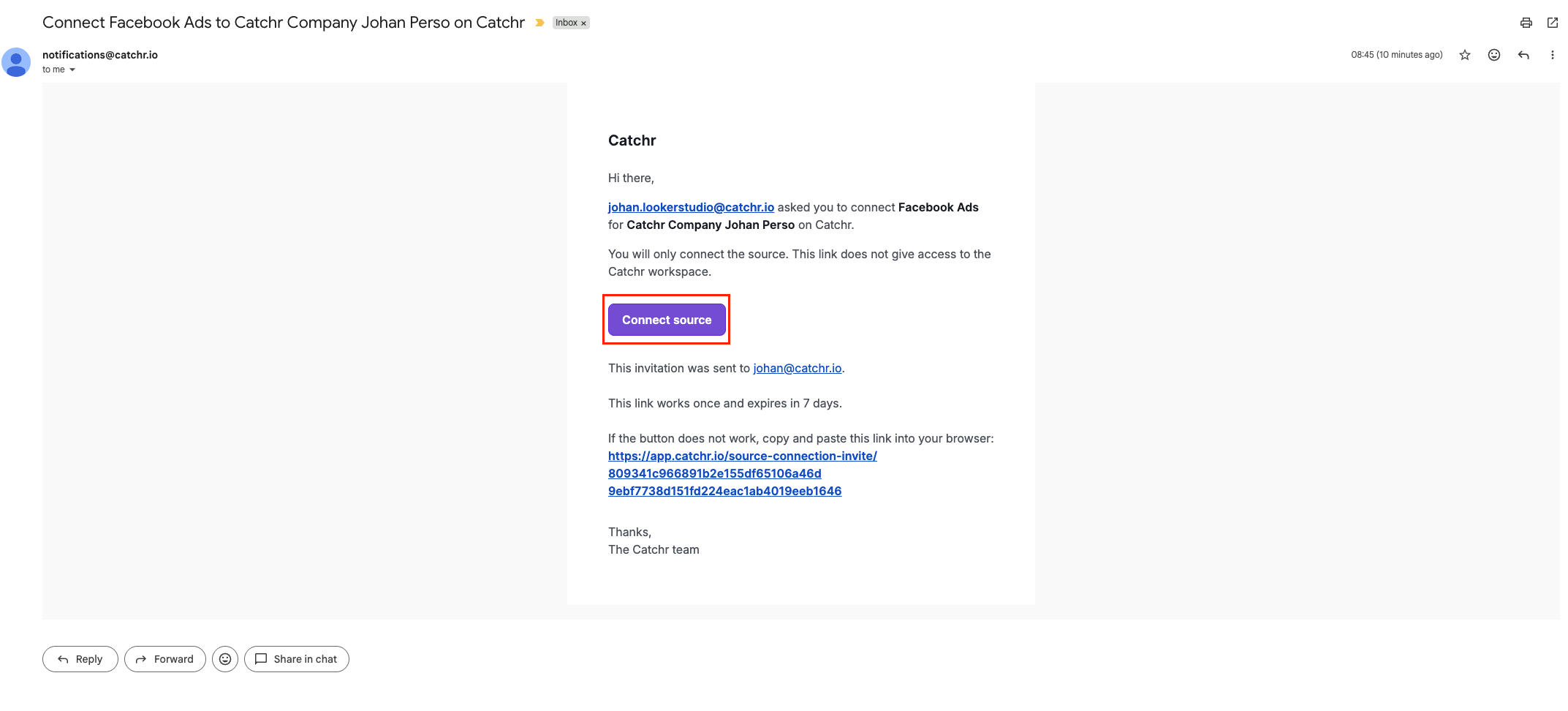
The invited person receives an email with a Connect source button.
The email clearly explains that:
- They are only connecting the source
- The link does not give access to the Catchr workspace
- The link expires after a limited time (7 days)
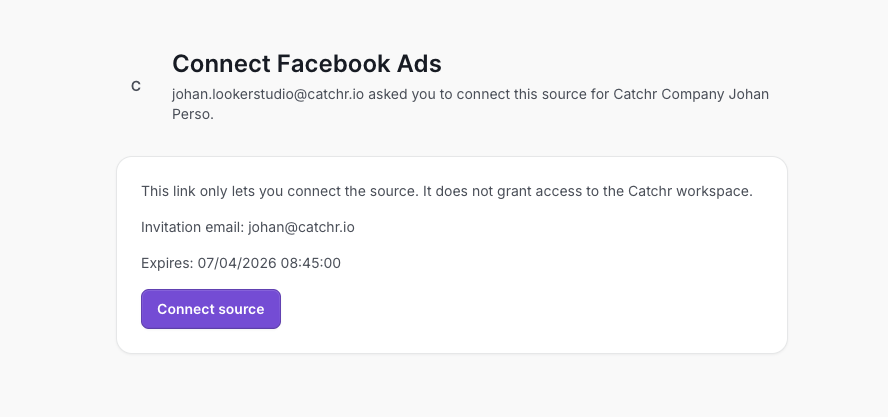
When the invited person clicks Connect source, they are redirected to a secure page where they can complete the source connection.
They then follow the standard authorization steps for that platform.
The exact steps after this point depend on the platform being connected.
Once the invited person completes the connection:
- The source is added to the inviter's Catchr account
- The invited person has successfully connected the source
- The invited person still has no access to the Catchr workspace
- Use a clear source name before sending the invitation
- Send the link to the person who actually owns or manages the platform account
- Tell the recipient to complete the connection from the email as soon as possible
- Remind the recipient that the invitation link is one-time and time-limited
- Confirm that the email address was entered correctly
- Ask them to check spam or junk folders
- If needed, restart the flow and send a new invitation
The invitation link may already have been used or may have expired.
In that case, create a new invitation from Catchr and send a fresh link.
- Refresh the Source page
- Check whether the source connection is still being processed
- Confirm that the invited person completed the full platform authorization flow
If the source still does not appear, contact Catchr support through chat.