This tutorial explains how to create a queryable URL with the Catchr API Query Builder.
It covers:
The API Builder interface
How to configure a query step by step
How to preview the result
How to save and reload a query
How to copy the final URL
Before using the API Query Builder, you need at least one source connected in Catchr.
You can add a source here.
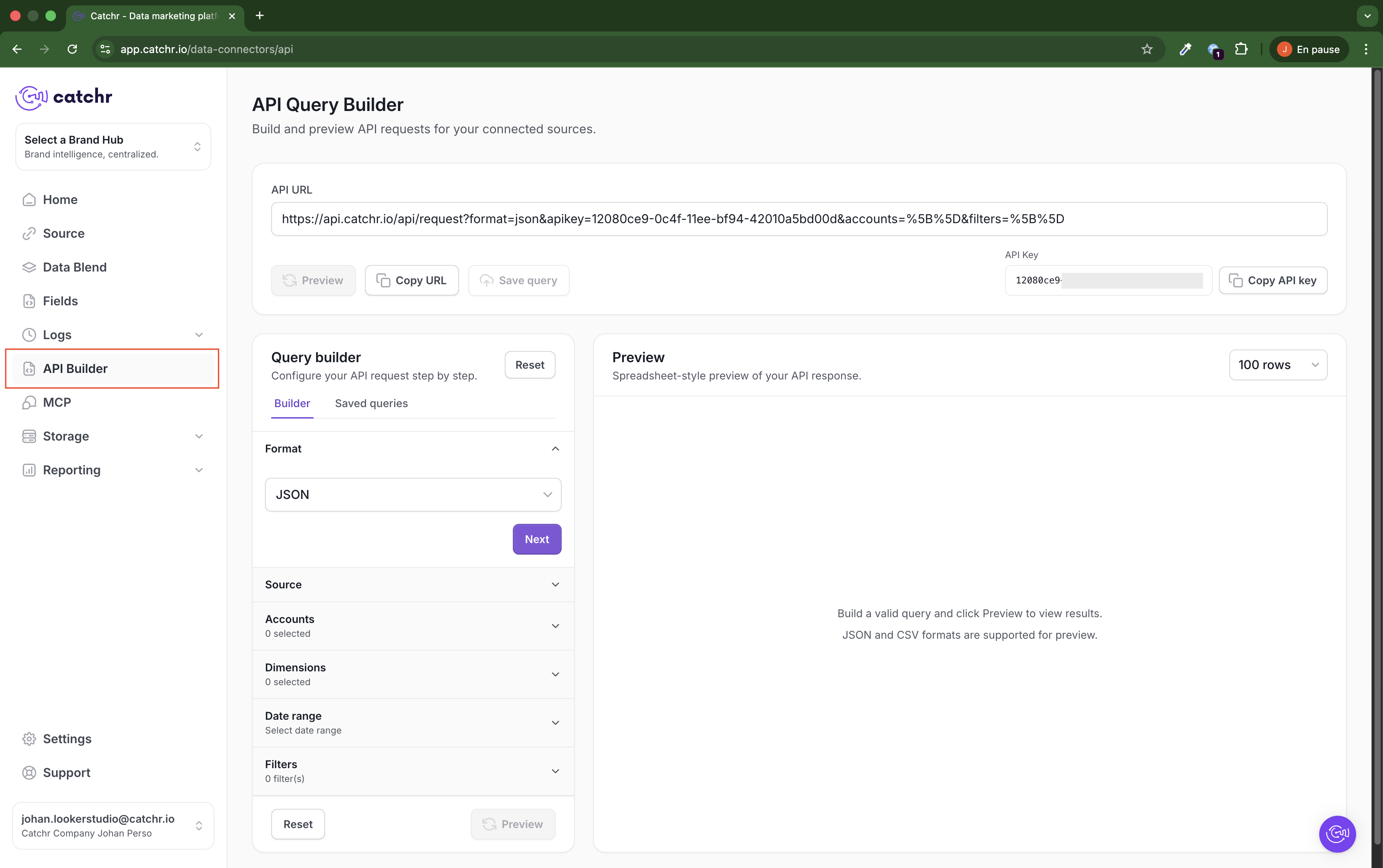
Go to API Builder from the left sidebar.
On this page, you will find:
The API URL at the top, which is built as you configure the query
The API Key for the Catchr workspace
The Query builder on the left
The Preview panel on the right
The API Key is linked to the Catchr company, not to one specific user.
Important:
The same API Key is shared across the workspace
It should not be shared with people outside your service or company
The Preview panel helps you confirm that the query returns the data you expect before using the final URL elsewhere.
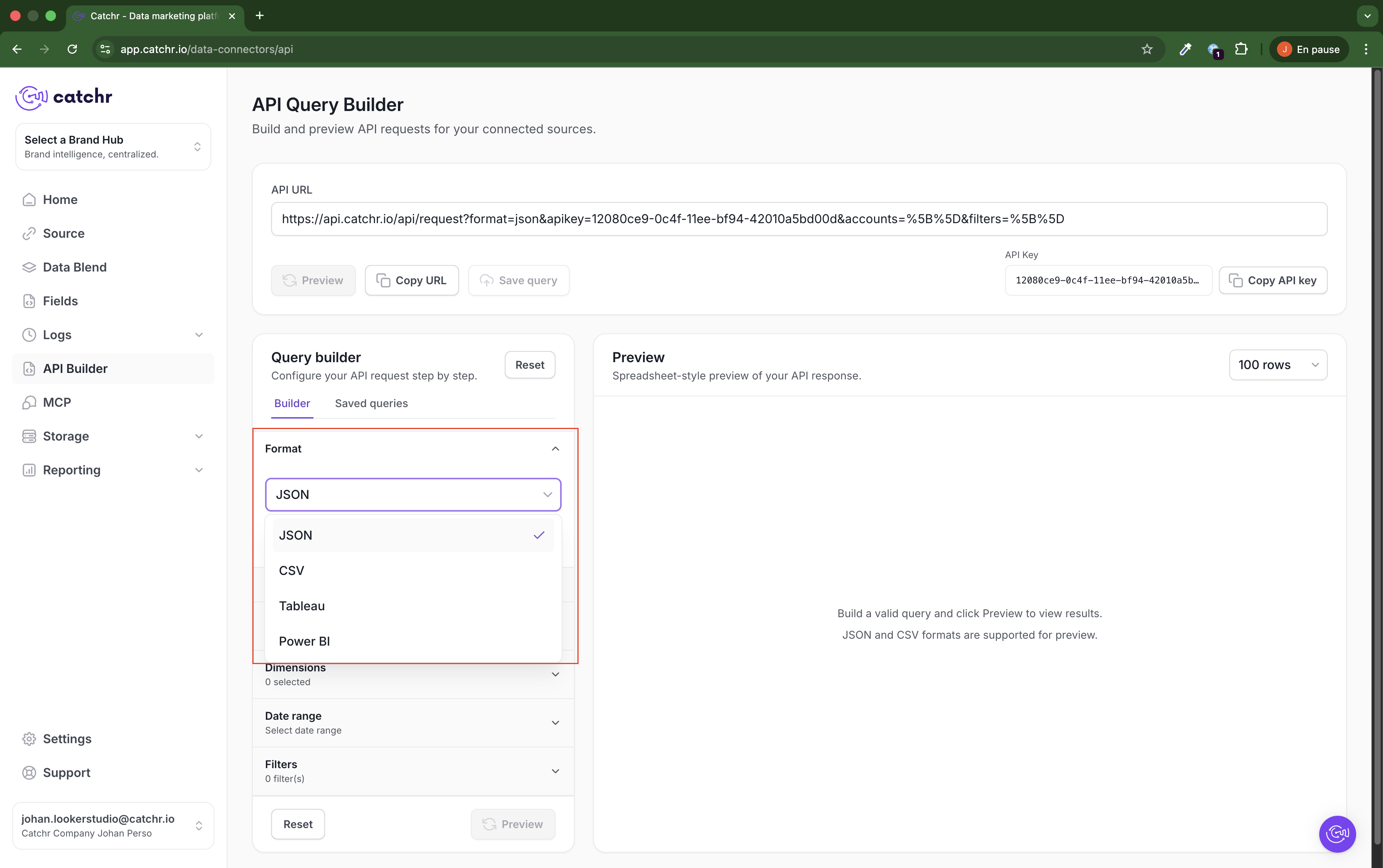
Choose the output format you want to use.
Available formats:
JSON
CSV
Power BI
Tableau
Power BI and Tableau formats are designed specifically for those destinations.
For preview purposes, JSON and CSV are the supported formats shown in the interface.
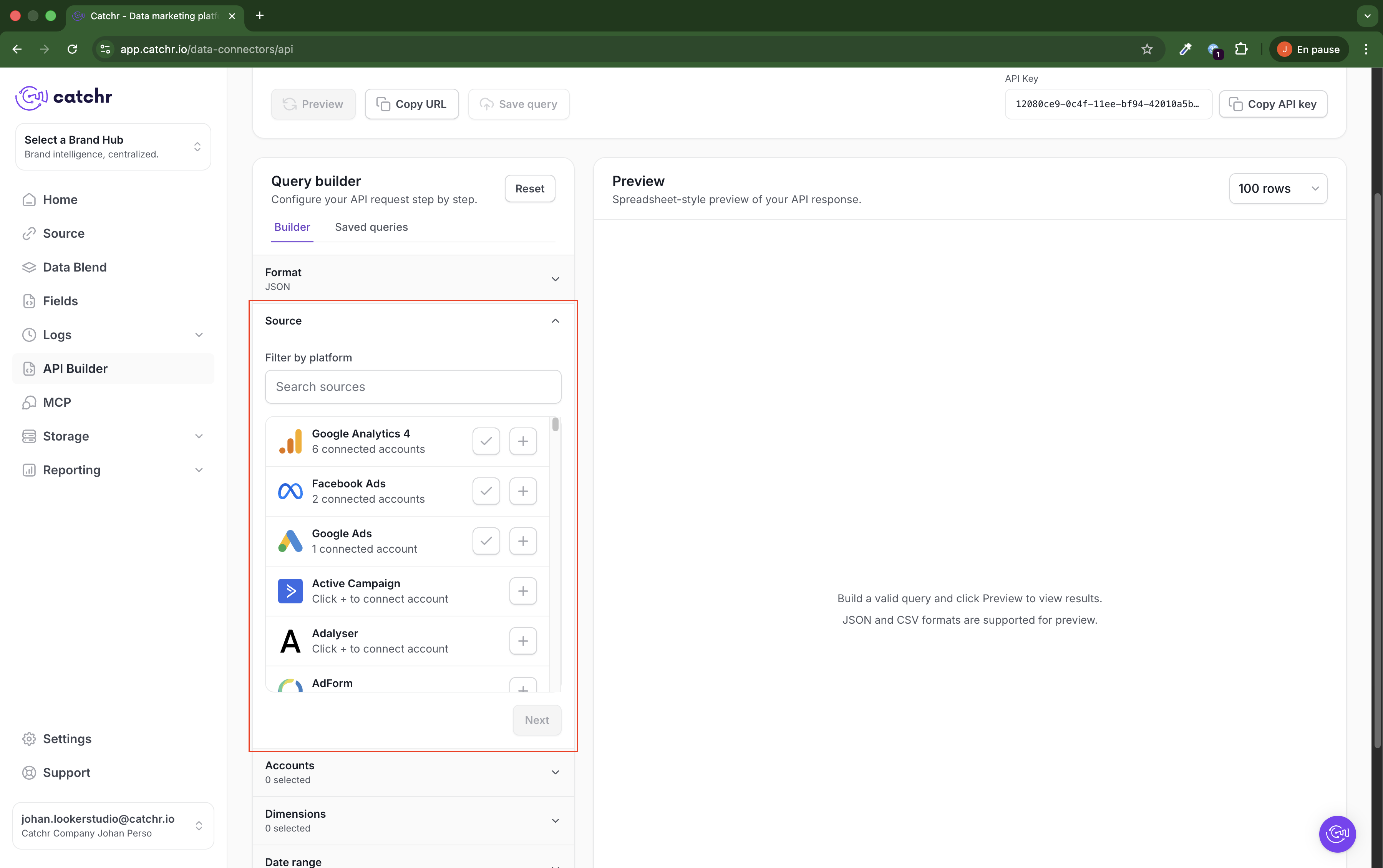
Select the platform you want to query.
You can:
click the check icon
or click the platform name directly
If you click the + button, Catchr redirects you to the source creation flow to add a new source.
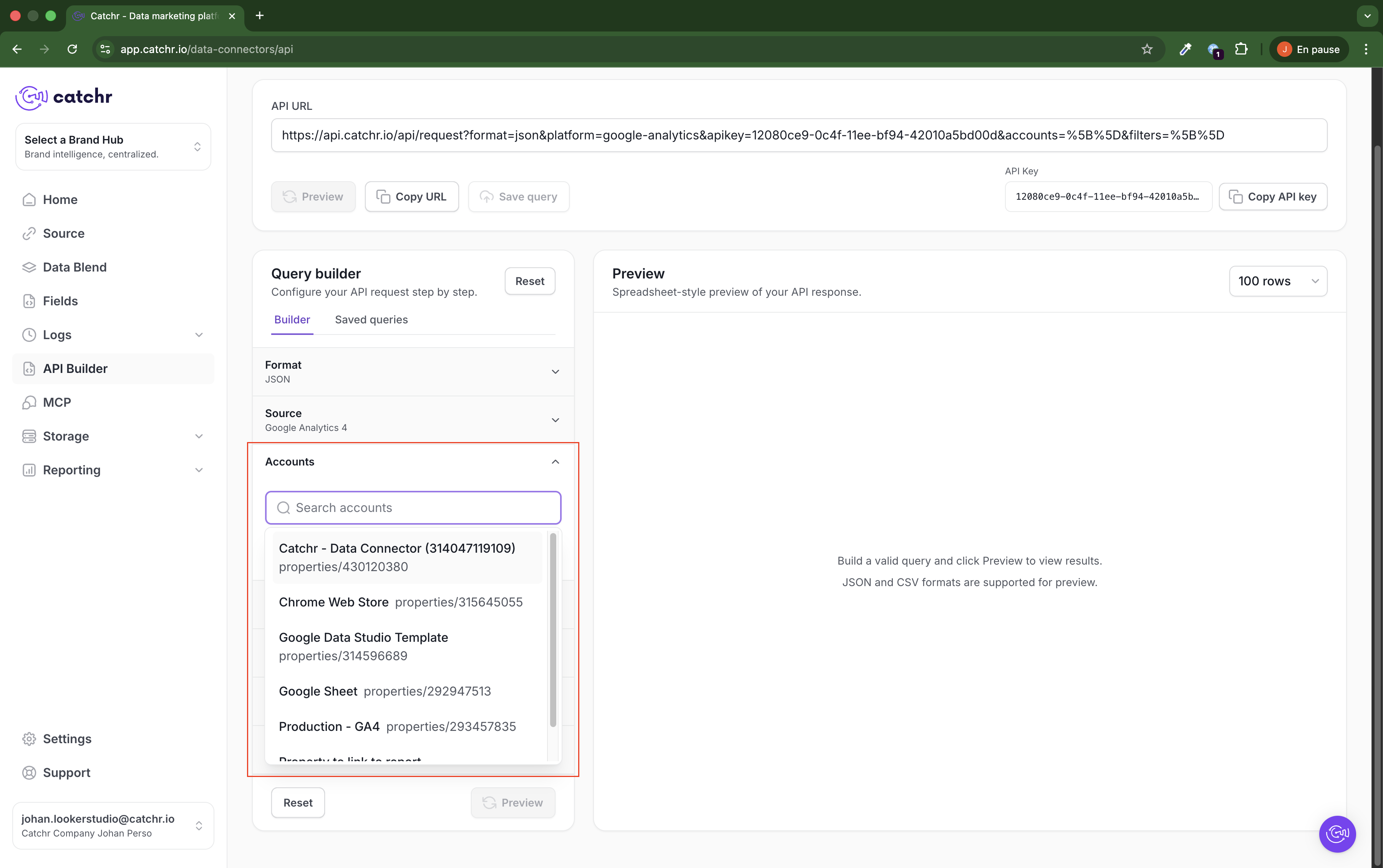
Select the account or accounts you want to query.
This lets you decide exactly which connected accounts should be included in the request.
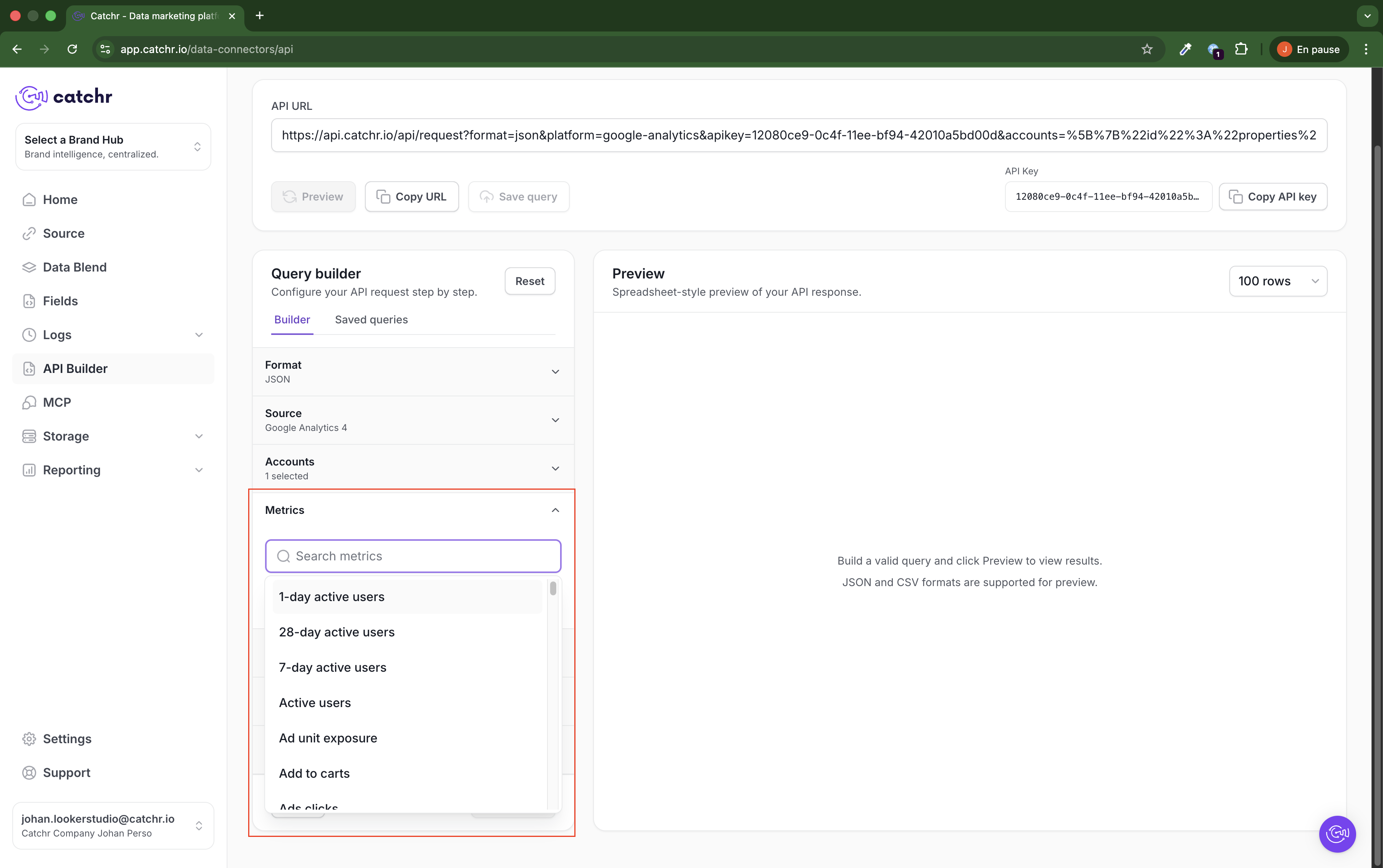
Choose the metrics you want to include in the query.
Metrics are the quantitative values returned by the request, such as:
sessions
clicks
impressions
spend
conversions
The list depends on the selected platform.
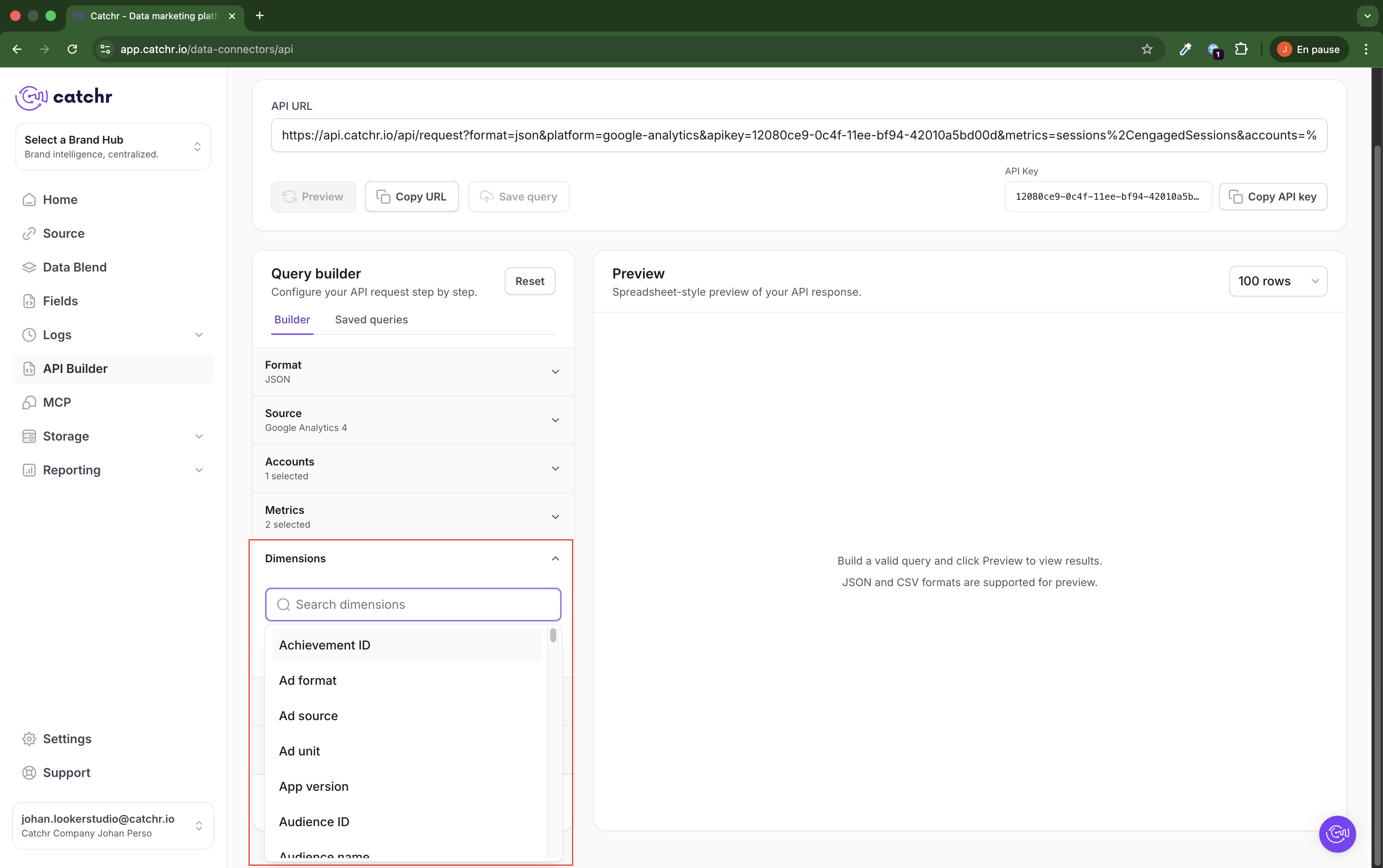
Choose the dimensions you want to include.
Dimensions let you break down the result by attributes such as:
date
source
campaign
device
country
The available dimensions depend on the selected platform.
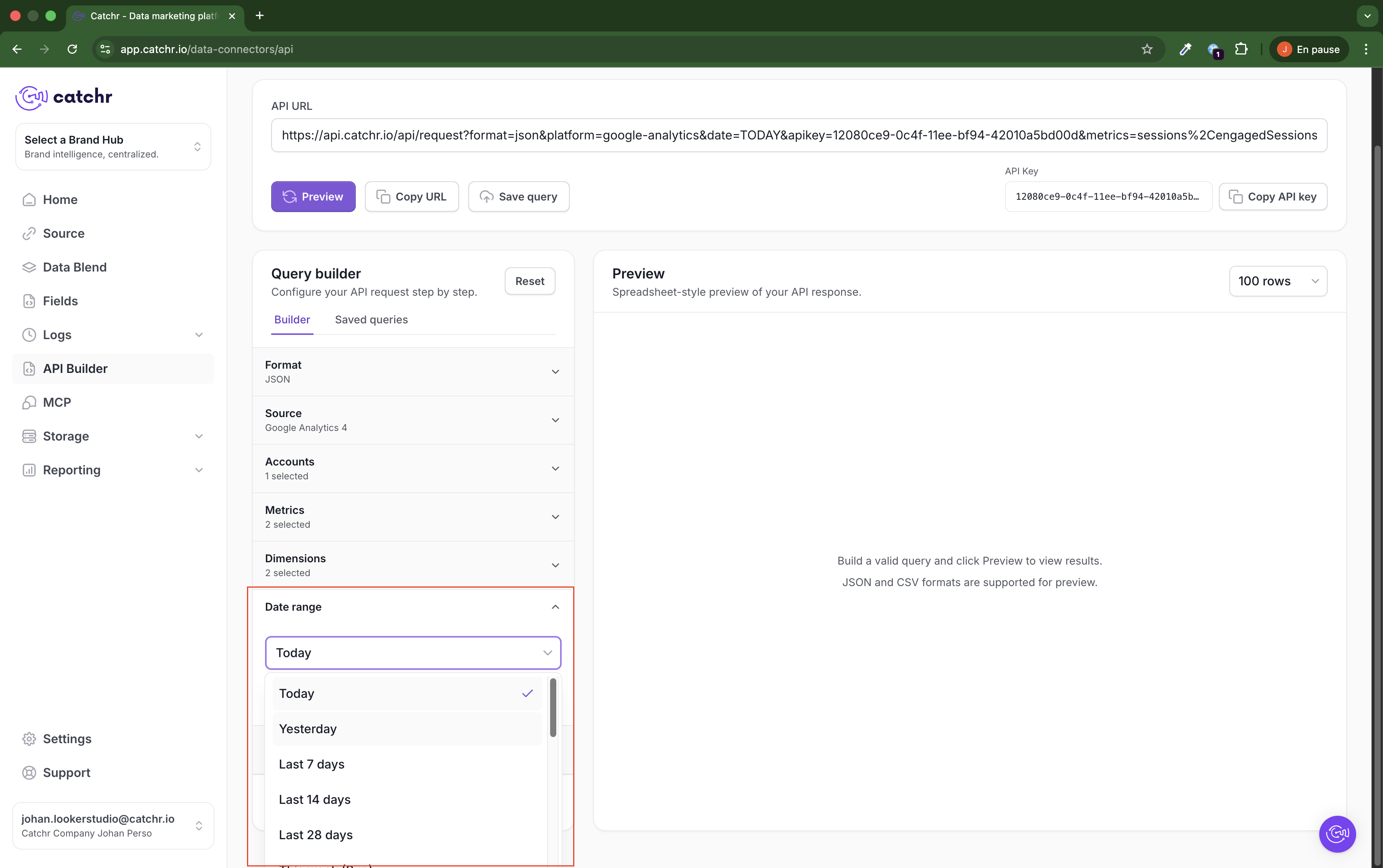
Choose the period your query should cover.
This defines the time window used in the API request.
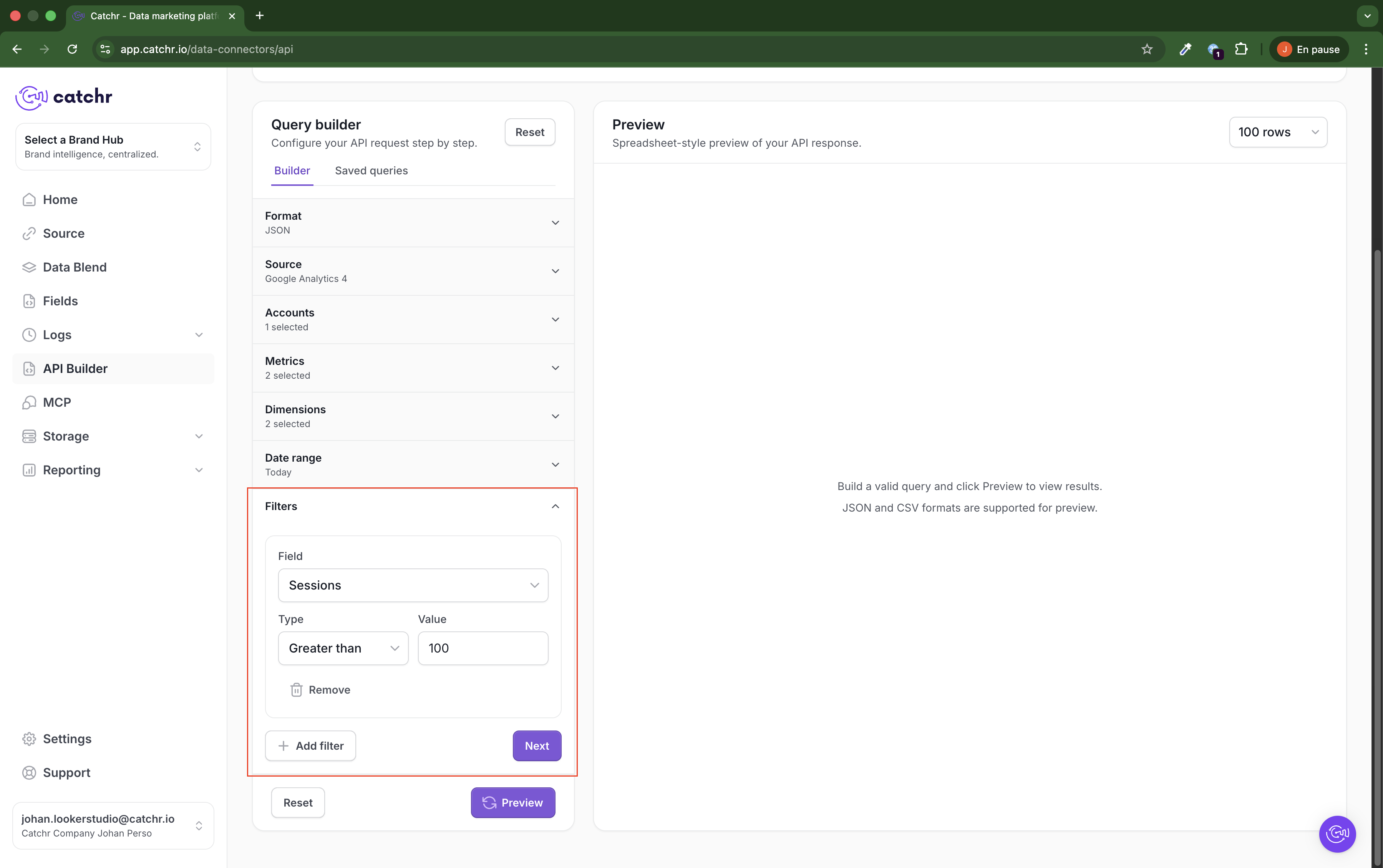
Filters are optional.
Use them when you want to narrow the query result.
Important:
If you add multiple filters, Catchr combines them with AND
If you need OR logic, create multiple separate queries
Some platforms include an extra configuration step.
For Amazon Ads and Amazon Seller, you may need to choose the report to query before selecting metrics.
For Facebook Ads and Pinterest, an additional Options step lets you configure attribution.
If nothing is selected, the default attribution is:
7-day click
1-day view
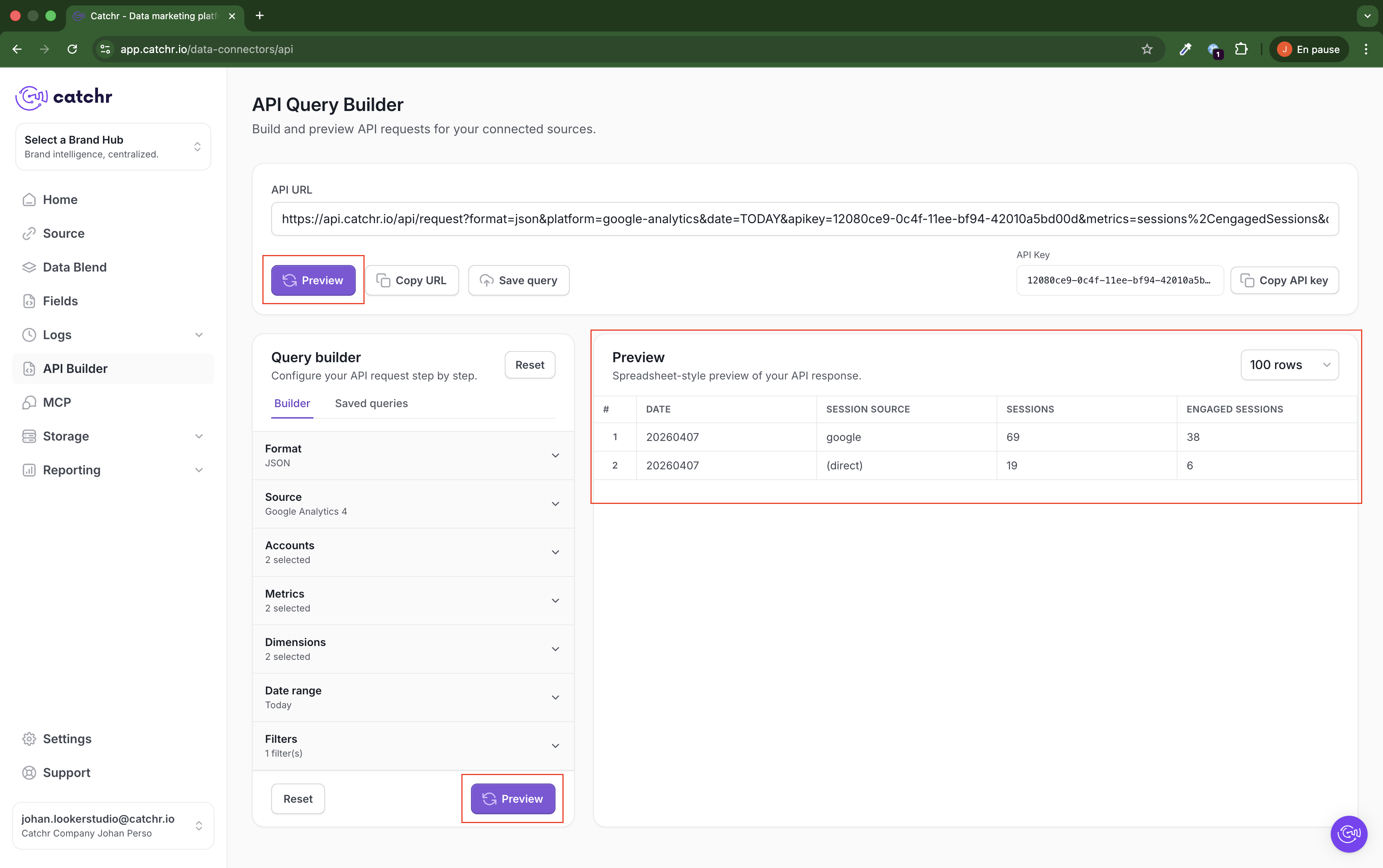
Click Preview to check whether the query works and whether the result matches your expectation.
If the query is valid, the result appears in the Preview panel on the right.
This is the best step to validate the structure before copying the final URL.
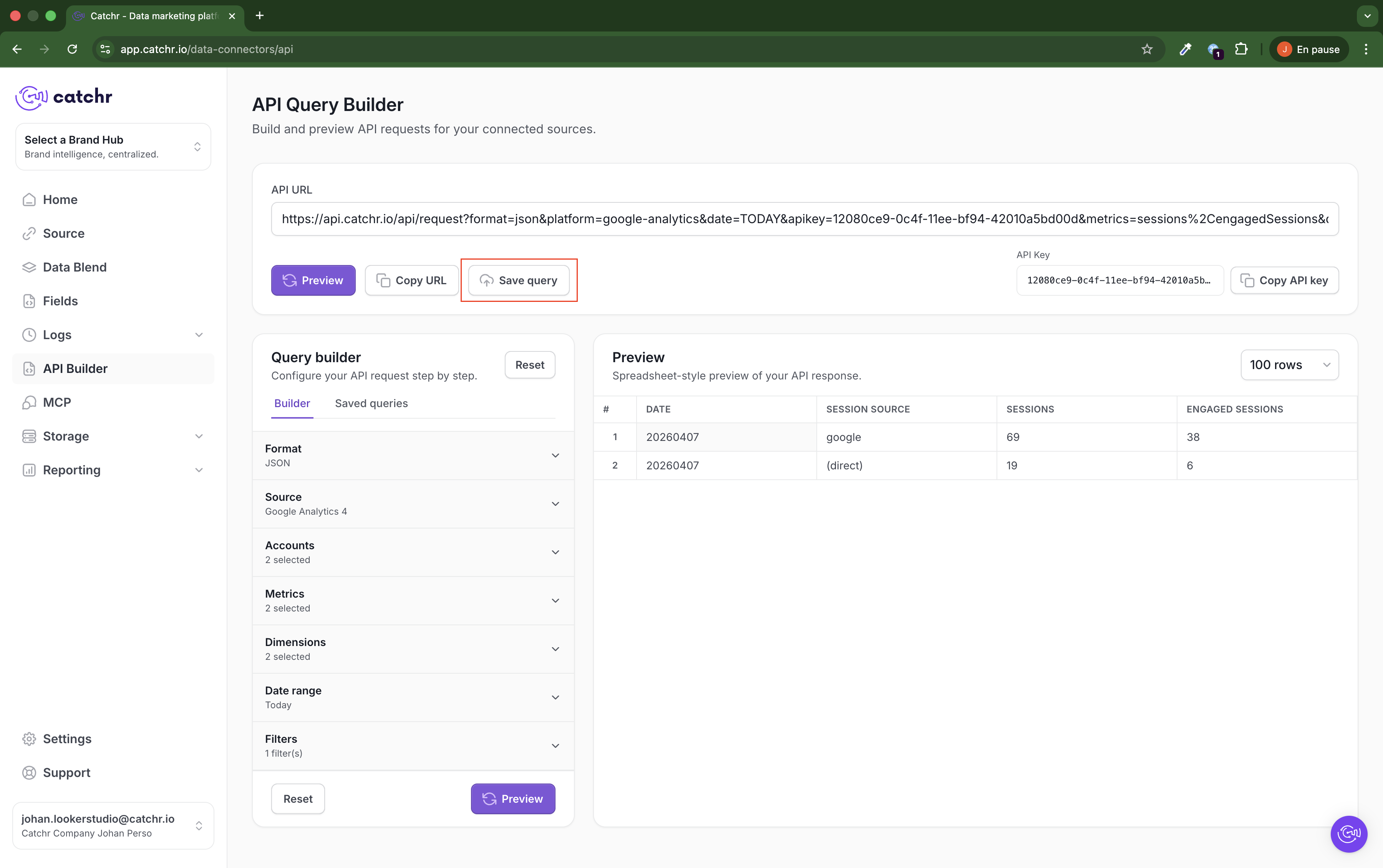
If you want to reuse the query later, click Save query.
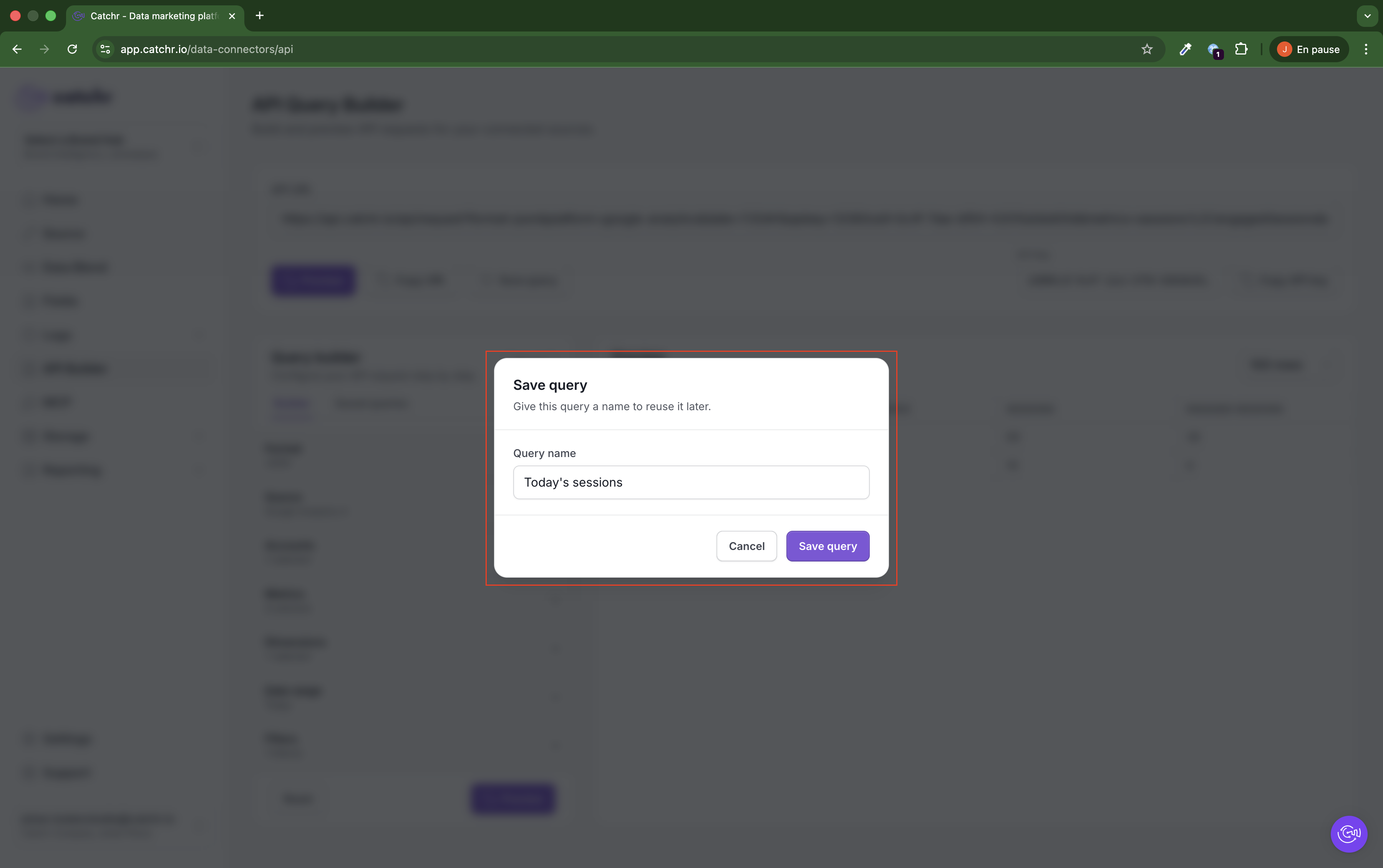
Then enter a name for the query and click Save query.
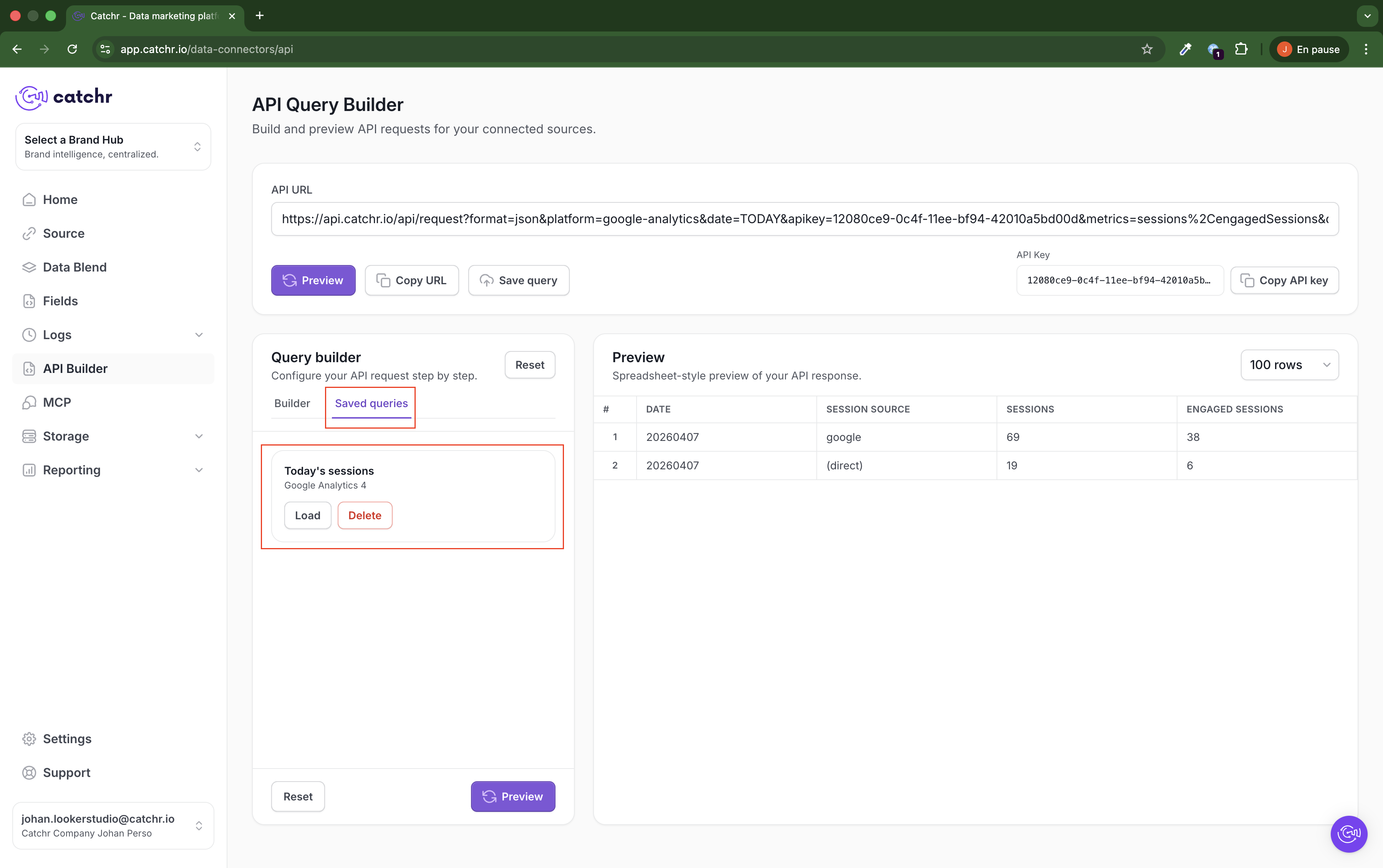
Saved queries are available in the Saved queries tab.
From there, you can:
Click Load to reopen a saved query in the Query Builder
Click Delete to remove it
Once the query is complete and previewed, click the API URL to copy it, or use Copy URL.
That URL can then be used wherever you want:
internal tools
scripts
spreadsheets
BI tools
automated workflows
Once the structure is validated, you can also adjust the URL parameters to retrieve the data you need.
The API Key is present in the URL.
Because of that:
Be careful where you store the URL
Do not expose it publicly
Do not share it with external people unless they are explicitly allowed to access your Catchr workspace data
There is no daily query limit.
Once the query structure has been validated, you can reuse and adapt the URL as needed.